

Close a date or change opening hours
Summary
Section titled “Summary”You close a single date, and you set custom hours for a single date, on the Calendar settings screen in the KonversAI console. Select Calendar in the left sidebar, then select Calendar settings. The screen carries the heading Calendar settings. Two sections do this work. Date overrides changes one date on one calendar. Availability display controls how much availability the public booking widget shows to customers. The weekly schedule stays as it is. See Set up a booking calendar for the first set-up of a calendar.
Who can do this
Section titled “Who can do this”A Tenant Admin, or any team member whose role includes the calendar permission. The console calls the two calendar permissions View calendar and Modify calendar. View calendar shows the Calendar settings screen. Modify calendar lets you add, change and delete a date override, and lets you change Show per-hour availability. A Tenant Operator does not get the calendar permissions by default. If you do not see Calendar in the left sidebar of the KonversAI console, ask a Tenant Admin to change your role.
Before you start
Section titled “Before you start”Make sure your tenant has the calendar feature. Calendar is a per-tenant feature flag. When the feature is off, the Calendar item is missing from the left sidebar of the KonversAI console. Contact KonversAI support to switch the feature on.
Create at least one calendar first. A date override always belongs to one calendar. The Date overrides section on the Calendar settings screen shows No date overrides yet. Add one for holidays or custom hours. until you add the first one. See Set up a booking calendar to create a calendar.
Decide the date and the hours. A date override uses whole hours only. The start hour is 0 to 23. The end hour is 1 to 24. The end hour must be larger than the start hour.
Know that a date override does not cancel a booking. KonversAI changes the free times from that moment. A booking that a customer already made on that date stays in the system. Open Calendar and then Bookings to cancel it. See Cancel a booking.
Close a single date, such as a public holiday
Section titled “Close a single date, such as a public holiday”-
Select Calendar in the left sidebar of the KonversAI console, then select Calendar settings.
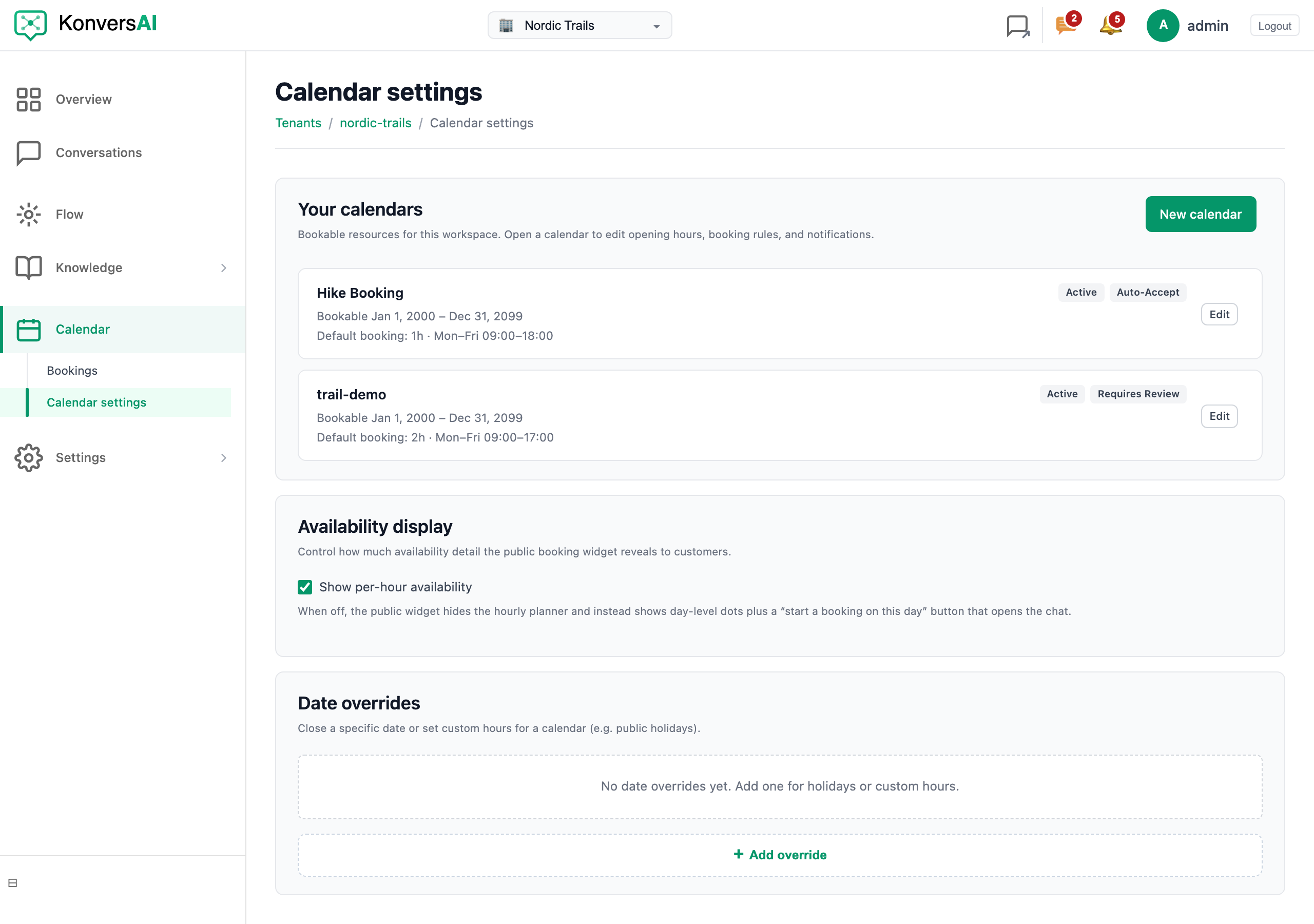
Calendar settings. Add a date override here to close a single date.
-
Go to the Date overrides section and select + Add override. A panel opens with the heading New override.
-
Leave Apply to all calendars clear to change one calendar. Select Apply to all calendars to make the same override on every calendar in your tenant. The help text under the checkbox reads Creates a separate override for each calendar.
-
Select the calendar in Calendar. The list starts with Select a calendar. This field is hidden when you check Apply to all calendars.
-
Set the day in Date.
-
Set Type to Closed.
-
Type a short note in Reason (optional), such as Public holiday. The Date overrides list shows this note beside the date. The customer never reads it.
-
Select Add override. KonversAI shows the message Override added. and the new row appears in the Date overrides list with the badge Closed.
Set custom hours for a single date
Section titled “Set custom hours for a single date”- Select Calendar in the left sidebar of the KonversAI console, then select Calendar settings.
- Go to the Date overrides section and select + Add override.
- Select the calendar in Calendar, and set the day in Date.
- Set Type to Custom hours. Two more fields appear.
- Type the opening hour in Custom start hour. Use a whole number from 0 to 23.
- Type the closing hour in Custom end hour. Use a whole number from 1 to 24. The end hour must be larger than the start hour. KonversAI refuses the override with the message Must be greater than custom_start_hour. when it is not.
- Type a short note in Reason (optional), such as Short day.
- Select Add override. The new row appears in the Date overrides list with the badge Custom hours.
Choose how much availability customers see
Section titled “Choose how much availability customers see”- Select Calendar in the left sidebar of the KonversAI console, then select Calendar settings.
- Go to the Availability display section. The help text reads Control how much availability detail the public booking widget reveals to customers.
- Keep Show per-hour availability checked to show the hourly planner in the public booking widget. This is the default for a new tenant.
- Clear Show per-hour availability to hide the hourly planner. The public booking widget then shows day-level dots, plus the button Start a booking on this day. That button opens a chat with the assistant, and the assistant agrees the time with the customer.
- KonversAI saves the checkbox at once. There is no save button in Availability display. The screen shows Failed to save calendar settings and puts the checkbox back when the save fails.
Change or remove a date override
Section titled “Change or remove a date override”- Select Calendar in the left sidebar of the KonversAI console, then select Calendar settings.
- Go to the Date overrides section and find the row. Each row shows the date, the calendar name, your note, and the badge Closed or Custom hours.
- Select Edit on the row. The row opens as a form with Date, Calendar, Type and Reason. Type set to Custom hours also shows Custom start hour and Custom end hour.
- Change the fields, then select Save. Select Cancel to keep the row as it is.
- Select Delete on the row to remove the override. The console asks Delete this override?. Select OK. The date then follows the weekly schedule again.
How do I close my booking calendar on a public holiday?
Section titled “How do I close my booking calendar on a public holiday?”Use a date override on the Calendar settings screen in the KonversAI console. Select Calendar in the left sidebar, then select Calendar settings. Go to the Date overrides section and select + Add override. Pick the calendar in Calendar, set the day in Date, and set Type to Closed. Type Public holiday in Reason (optional), then select Add override. The calendar takes no bookings on that date. The weekly schedule does not change, so the same weekday stays open in every other week.
Which wins, the date override or the weekly schedule?
Section titled “Which wins, the date override or the weekly schedule?”The date override wins. KonversAI reads the date override for that calendar and that date first. A Closed override closes the whole day, even when the weekly schedule marks that weekday open. A Custom hours override replaces the weekly hours for that one date. When no override exists for the date, KonversAI uses the weekly schedule for that weekday. When no weekly row exists either, the calendar is closed. You add and change an override in the Date overrides section of the Calendar settings screen in the KonversAI console.
Can I close the same date on all my calendars at once?
Section titled “Can I close the same date on all my calendars at once?”Yes. Select Calendar in the left sidebar of the KonversAI console, then select Calendar settings. Go to the Date overrides section, select + Add override, and check Apply to all calendars. The Calendar field then disappears. KonversAI makes one separate override for each calendar in your tenant, as the help text Creates a separate override for each calendar. says. Apply to all calendars also replaces an override that already exists on that date. Delete each row on its own later, because there is no bulk delete.
I already have an override on that date and the new one fails. Why?
Section titled “I already have an override on that date and the new one fails. Why?”One calendar can hold only one override for one date. The Date overrides section of the Calendar settings screen in the KonversAI console refuses a second override for the same calendar and the same date. Find the row for that date in the Date overrides list, select Edit, change Type, Custom start hour, Custom end hour or Reason, and select Save. Select Delete on the row first when you prefer to start again.
What does the customer see when I clear Show per-hour availability?
Section titled “What does the customer see when I clear Show per-hour availability?”The customer sees the days, not the hours. Show per-hour availability sits in the Availability display section of the Calendar settings screen in the KonversAI console. With the checkbox clear, the public booking widget shows the current week plus the next four, with a dot on each day, and hides the hourly planner. Days earlier in the current week are greyed out and cannot be selected. The customer picks a day and selects the button Start a booking on this day. KonversAI then opens a chat, and the assistant agrees the exact time with the customer. A closed day shows the text Closed on this day. and no button. KonversAI also refuses the hourly endpoints while the checkbox is clear, so the booked times of your day stay private.
Does a date override cancel bookings that customers already made?
Section titled “Does a date override cancel bookings that customers already made?”No. A date override on the Calendar settings screen in the KonversAI console changes the free times only. A booking that a customer made before you added the override stays in the system, and the customer keeps the confirmation email. To remove that booking, select Calendar in the left sidebar and then Bookings, open the booking, and select Cancel booking. KonversAI then sends a cancellation email. See Cancel a booking for the full steps.
Can I set half-hour opening times for one date?
Section titled “Can I set half-hour opening times for one date?”No. A date override on the Calendar settings screen in the KonversAI console takes whole hours only. Custom start hour accepts 0 to 23. Custom end hour accepts 1 to 24, and must be larger than the start hour. Use 24 in Custom end hour for midnight at the end of the day. The booking slot length is a separate setting: open Calendar settings, select Edit on the calendar, and set Booking slot length under Booking rules.
Where do I set the normal weekly opening hours?
Section titled “Where do I set the normal weekly opening hours?”Not in Date overrides. Select Calendar in the left sidebar of the KonversAI console, then select Calendar settings. Go to Your calendars and select Edit on the calendar. The Edit calendar page holds the Weekly schedule under Opening hours and dates. Set the Open checkbox and the hours for each weekday there, then select Save calendar. The full steps are on Set up a booking calendar. Use Date overrides only for one date at a time.
Last reviewed . Tell us when a step no longer matches the product.