

Organize your knowledge with topics
Summary
Section titled “Summary”You manage topics on the Topics screen in the KonversAI console. Select Knowledge in the left sidebar, then select Topics. The page heading is also Topics, above the line Manage supervised topic labels used to classify your knowledge documents. A topic is a subject your customers ask about, for example “Opening hours” or “Refunds”. You write the list. KonversAI then puts each knowledge document into one topic, and matches each customer question to the nearest topic.
Who can do this
Section titled “Who can do this”A Tenant Admin can add, edit, delete and apply topics. Any team member with the View analytics permission can read the topic list. A Tenant Operator sees the list and the line You can view topics here. Only tenant admins can add, edit, delete, or apply changes. in place of the buttons. An administrator changes a role on Settings > Users & permissions in the KonversAI console.
Before you start
Section titled “Before you start”You manage topics on the Topics screen in the KonversAI console, under Knowledge > Topics in the left sidebar. Topics are not behind a feature flag. Every tenant has this screen.
Put your documents in the knowledge base first. KonversAI classifies documents into topics, so a knowledge base with no documents gives you empty topics. Use Connect your website as a knowledge source or Upload a file to the knowledge base first.
Write down the subjects your customers ask about. Use the words your customers use, not your internal product names. A topic name and a short description are all KonversAI needs.
-
Select Knowledge in the left sidebar of the KonversAI console, then select Topics. The Topics screen opens.
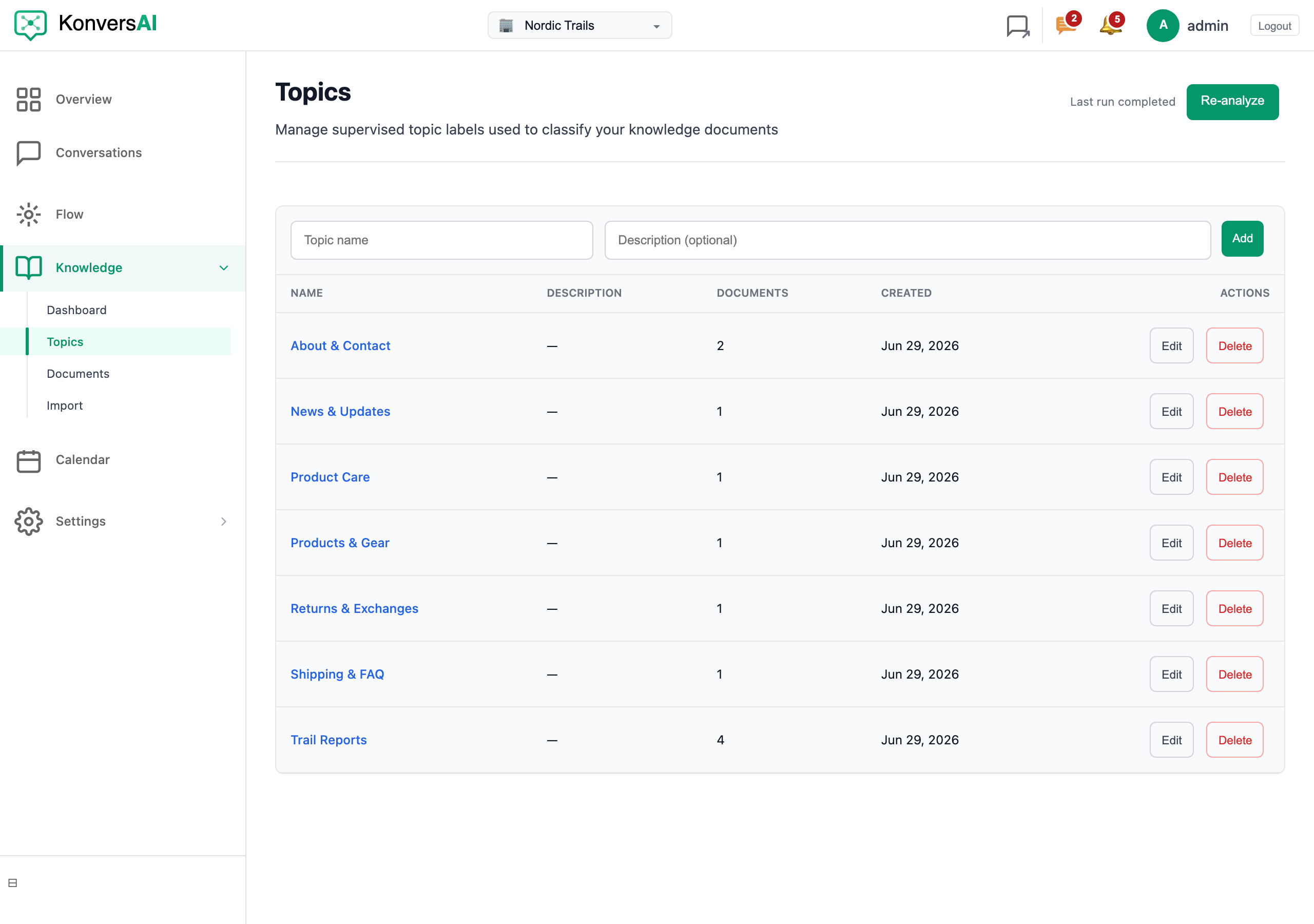
Topics describe what customers ask about. KonversAI classifies each document into one.
-
Read the panel Starter topics from your documents, when it is present. KonversAI groups your documents into draft topics and shows this panel to a Tenant Admin only. The panel explains: We grouped your documents into draft topics. Review, rename, or remove them — accepted topics join your list below. Select Accept to keep one draft, Edit to rename it, or Remove to discard it. Select Accept all to keep every draft.
-
Type a name in Topic name and a short explanation in Description (optional), then select Add. KonversAI uses the description to decide which documents belong to the topic, so a clear description gives a better result.
-
Read the table. The columns are Name, Description, Documents and Created. A Tenant Admin also sees an Actions column. A Tenant Operator sees the first four columns only. Documents is the number of documents KonversAI put in that topic at the last apply run.
-
Select Edit on a row to change the name or the description. Select Save to keep the change, or Cancel to stop.
-
Select Delete on a row to remove a topic. KonversAI asks Are you sure you want to delete this topic? first.
-
Select Apply at the top of the screen. KonversAI asks This will re-classify your documents and may take a few minutes. Continue?. Confirm it. The button reads Re-analyze after the first successful run.
-
Watch the status text beside the button. It reads No apply run yet, Apply queued, Apply running, Apply in progress…, Last run completed with the date, or Last run failed. A Tenant Admin must run Apply after every change to the topic list, because KonversAI does not classify documents on save.
-
Select a topic name in the table to open the topic page. The page shows Knowledge match strength, Amount of messages and Documents assigned, plus the charts Knowledge match strength trend and Document quality.
-
Select Knowledge > Dashboard in the left sidebar and select the Uncategorized card in the Topics section. The Uncategorized page lists the customer messages that match none of your topics. A long list means you need a new topic, or new content.
What is a topic in KonversAI, and why do I need one?
Section titled “What is a topic in KonversAI, and why do I need one?”A topic is a subject your customers ask about. You define the list on the Topics screen of the KonversAI console, under Knowledge > Topics in the left sidebar. KonversAI classifies each knowledge document into exactly one topic, and matches each customer question to the nearest topic. This gives you a per-subject score, so you see which subject your knowledge base answers well and which subject it answers badly. Without topics, every question lands in one pile and you cannot tell the difference.
I added a topic, but the Documents column still shows 0. Why?
Section titled “I added a topic, but the Documents column still shows 0. Why?”KonversAI does not classify documents when you save a topic. On the Topics screen in the KonversAI console, under Knowledge > Topics, select Apply at the top of the screen. KonversAI asks This will re-classify your documents and may take a few minutes. Continue?. Confirm it, and wait. The status text beside the button changes to Apply queued, then Apply running, then Last run completed with the date. The Documents column fills in when the run finishes. Only a Tenant Admin sees the Apply button.
The Topics screen says only tenant admins can change topics. What do I do?
Section titled “The Topics screen says only tenant admins can change topics. What do I do?”The KonversAI console shows the line You can view topics here. Only tenant admins can add, edit, delete, or apply changes. on Knowledge > Topics when your role is Tenant Operator. You can read the topic list, open each topic page, and read the numbers. You cannot add, edit, delete or apply. Ask an administrator to change your role to Tenant Admin on Settings > Users & permissions in the console. See Add a team member.
What is the difference between Starter topics and Suggested topics?
Section titled “What is the difference between Starter topics and Suggested topics?”Both panels are on the Topics screen of the KonversAI console, under Knowledge > Topics. Starter topics from your documents comes from your documents: KonversAI groups them into draft topics so a new tenant does not start with a blank list. KonversAI shows this panel to a Tenant Admin only. You select Accept, Edit, Remove, or Accept all. Suggested topics comes from your customers: KonversAI mines the questions that match none of your topics and proposes a new topic for each recurring group. Every team member who can open the Topics screen sees the Suggested topics panel, but only a Tenant Admin sees the Approve and Reject buttons. Each card shows a query count, an answered percent, sample messages, and sometimes a Spike badge. The Topics screen hides the Suggested topics panel when no cards are waiting. After you act on the last card, the panel stays on screen and reads No suggestions to review right now.
How many topics should I create?
Section titled “How many topics should I create?”The number depends on what your customers ask about. KonversAI puts each document into exactly one topic, so too many topics split your documents into groups that are too small to score. Too few topics hide the difference between subjects. Start with the subjects your customers ask about most, run Apply on the Topics screen under Knowledge > Topics in the KonversAI console, and add a topic later when the Suggested topics panel proposes one.
What does Uncategorized mean, and how do I make the list shorter?
Section titled “What does Uncategorized mean, and how do I make the list shorter?”Uncategorized holds the customer messages that match none of your topics. Open it in the KonversAI console: select Knowledge > Dashboard in the left sidebar, then select the Uncategorized card in the Topics section. The page explains: Messages that don’t match any of your defined topics. The goal is to keep this list as short as possible, either by creating new topics or improving existing documents. The page covers the last 30 days and shows Uncategorized messages, Unanswered, Share of total traffic and Goal. Two fixes work: add a topic that covers the subject on Knowledge > Topics, or add the missing content. For the full fixing workflow, read Find out why an answer was wrong.
What happens to the numbers when I delete a topic?
Section titled “What happens to the numbers when I delete a topic?”KonversAI keeps the old measurements. On the Topics screen in the KonversAI console, under Knowledge > Topics, select Delete on the row and confirm Are you sure you want to delete this topic?. KonversAI marks the topic inactive: it leaves your list and stops taking new documents and new questions, but the historical snapshots stay. The documents themselves are not deleted. Select Apply afterwards, so KonversAI moves those documents into the topics that remain.
My topic page says Collecting data instead of a percent. What is wrong?
Section titled “My topic page says Collecting data instead of a percent. What is wrong?”Nothing is wrong. Collecting data on a topic page in the KonversAI console means the topic has no customer questions yet, so KonversAI cannot compute a match strength. Open the page from Knowledge > Topics in the left sidebar and select the topic name. The other banners are Performing well, Needs improvement and Critical — needs attention. A new topic, or a topic about a subject nobody asks about, stays on Collecting data. KonversAI recomputes the numbers every night.
Last reviewed . Tell us when a step no longer matches the product.