

Watch the Live overview
Summary
Section titled “Summary”Live overview is the operator screen in the KonversAI console. Select Conversations in the left sidebar of the console, then select Live overview. The sidebar label and the page heading are the same word: Live overview. The screen holds two lanes side by side: Waiting now and Needs attention. Each lane is a live list, and each lane shows a count next to its name. The top bar of the console holds the matching notification menu, with the header Notifications.
Who can do this
Section titled “Who can do this”Any team member whose role includes the View conversations permission. A Tenant Admin always has this permission, and a Tenant Operator has it by default. If you cannot see Conversations in the left sidebar of the KonversAI console, you do not have the permission. Ask an administrator to change your role. Reading the two lanes needs no other permission. Replying to a conversation needs the Modify conversations permission as well.
Before you start
Section titled “Before you start”Sign in to the KonversAI console and select your tenant. Select Conversations in the left sidebar, then select Live overview. The Live overview item is not behind a feature flag, so every tenant has it. The Email, Review calls and Form submissions items under Conversations are behind per-tenant feature flags, and a conversation from a switched-off channel does not reach your lanes.
The Waiting now lane counts a customer as present only while the chat widget sends a heartbeat. A customer who closes the browser tab leaves the lane. The lane is therefore about right now, not about the whole day.
The notification menu in the top bar of the console needs one more step. Your browser must give KonversAI permission to show a notification. KonversAI never asks for that permission by itself. You grant it with the Enable button in the menu.
-
Select Conversations in the left sidebar of the KonversAI console, then select Live overview. The screen opens with the heading Live overview.
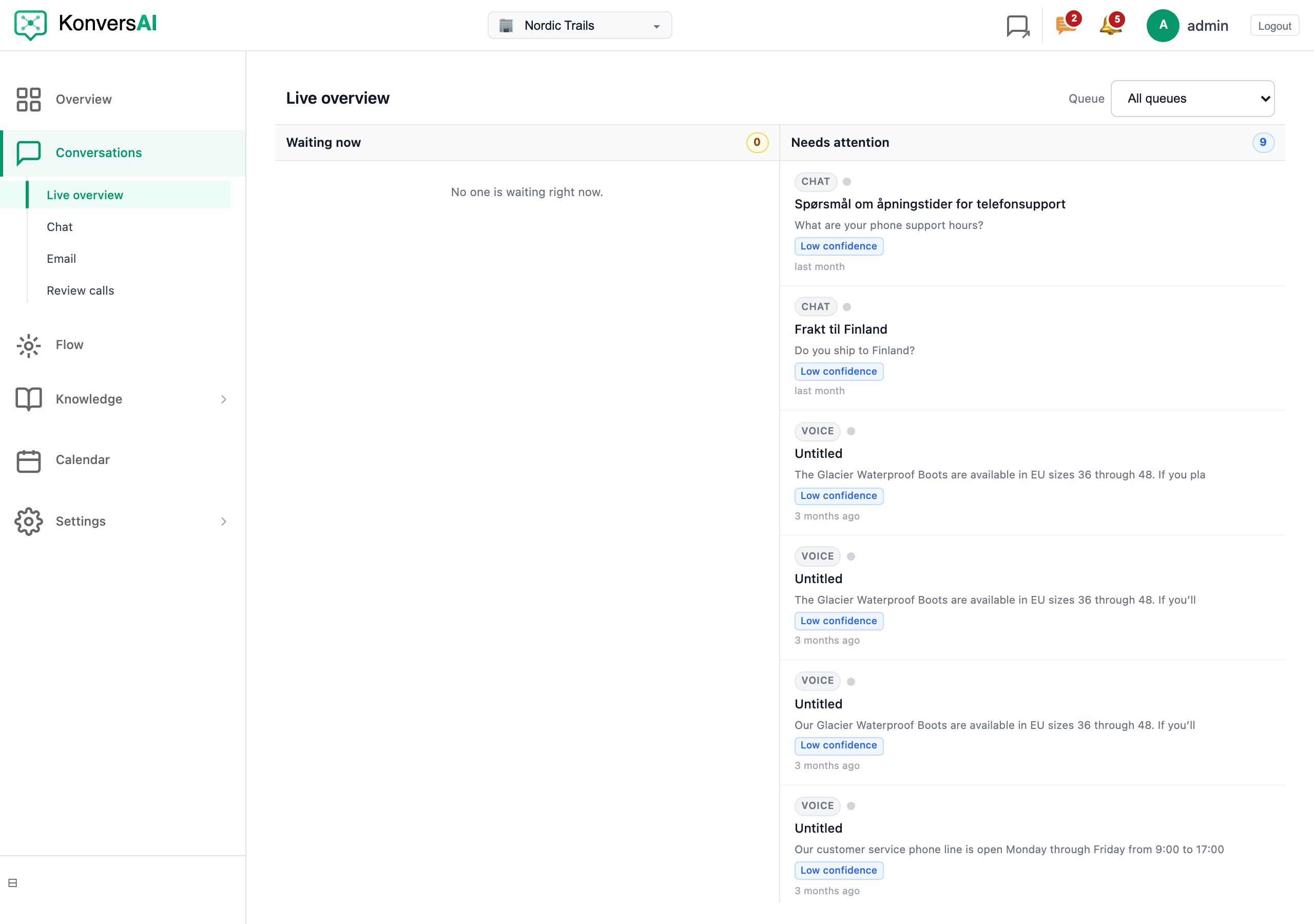
Live overview. Each lane lists the conversations that need a person now.
-
Read the Waiting now lane. This lane holds the conversations where a customer waits for an answer right now. The number next to the lane name is the total count, not the number of rows on screen.
-
Understand what puts a conversation into Waiting now. KonversAI needs all three of these to be true: the conversation is open, the customer was present in the last 60 seconds, and the last message in the conversation is the customer’s. A conversation leaves the lane the moment anybody answers.
-
Read the Needs attention lane. This lane holds the conversations that KonversAI ranks as a problem, with the worst problem at the top.
-
Read the reason chips on each row of the Needs attention lane. A conversation enters the lane when at least one reason fires. The eight reasons, from most urgent to least urgent, are Reply failed, Handover, Contact requested, No answer, Low confidence, Unattended, Off topic and Wrap-up. A row shows a maximum of three chips, then a + count for the rest.
-
Use the Queue filter at the top of the screen to scope both lanes to one queue. The default is All queues. The filter stays in the page address, so you can bookmark one queue or send the address to a colleague.
-
Read the signals on a row. A round dot shows the customer presence, with the tooltip Active now, Idle or Away. A Waiting badge marks a customer who waits. A channel badge reads Chat, Email or Voice.
-
Select a row to open that conversation. KonversAI opens the thread for the channel of the row: a Chat row opens the chat console, an Email row opens the email console, and a Voice row opens the call. To answer the customer, read Take over a conversation from the assistant.
-
Leave the screen open. Both lanes refresh by themselves when anything happens in your tenant. KonversAI waits 1.2 seconds after a burst of activity, then refreshes both lanes at the same time. A failed refresh keeps the rows you already see.
-
Select the notification button in the top bar of the console to open the notification menu. A red badge on the button shows the number of conversations you have not opened yet, and reads 9+ above nine. The accessible name of the button changes with the badge. With a badge it reads Notifications, 3 unattended, with your own count. With no badge it reads Notification settings. The menu opens with the header Notifications.
-
Switch on Browser notifications in the menu. The hint under the title reads Alert me when this tab is in the background. Select Enable to ask your browser for permission. The row then shows a switch that reads On or Off.
-
Switch on Sound in the menu. The hint under the title reads Play a chime on new activity. A Volume slider appears under Sound while Sound is On. Sound alone gives you no chime. KonversAI plays the chime only when three things are true at the same time: Browser notifications is On, your browser granted the notification permission, and the console tab is in the background.
-
Choose the lanes you want to hear about in Notify me about. The three choices are Waiting + needs attention, Waiting only and Needs attention only. The default is Waiting + needs attention.
What is the difference between Waiting now and Needs attention?
Section titled “What is the difference between Waiting now and Needs attention?”Both are lanes on the Live overview screen under Conversations in the left sidebar of the KonversAI console. Waiting now is about time: a customer is at the widget right now, and nobody has answered their last message. Needs attention is about quality: KonversAI found a problem in the conversation, such as a failed reply or a weak knowledge lookup. A conversation can sit in both lanes at the same time. Work Waiting now first, because a person is watching the screen.
Why did a conversation disappear from the Waiting now lane?
Section titled “Why did a conversation disappear from the Waiting now lane?”The Waiting now lane on the Live overview screen of the KonversAI console holds only live, unanswered conversations. A conversation leaves the lane for one of three reasons. Somebody answered, so the last message is no longer the customer’s. The customer closed the tab, so KonversAI stopped getting the presence heartbeat and 60 seconds passed. Or a person closed the conversation. Nothing is lost: select Conversations in the left sidebar, then Chat, to find the conversation again.
What does each attention reason chip mean?
Section titled “What does each attention reason chip mean?”The chips appear on the rows of the Needs attention lane, on the Live overview screen of the KonversAI console. Reply failed means the last message in the conversation failed to send. Handover means the assistant asked for a person. Contact requested means the customer asked for a person to get in touch, or left a phone number or an email address for that purpose. This chip clears when a member of your team replies in the conversation, or when an operator closes it. KonversAI does not close such a conversation for inactivity. No answer means the assistant’s latest reply told the customer it could not help. Low confidence means the assistant’s latest knowledge lookup found nothing relevant. Unattended means the assistant is paused for that conversation, so only a person can answer. Off topic means the customer drifted away from your subject repeatedly, and Wrap-up means the assistant proposed to close the conversation.
Why does the Needs attention lane sometimes hold a conversation nobody is in?
Section titled “Why does the Needs attention lane sometimes hold a conversation nobody is in?”The Needs attention lane on the Live overview screen of the KonversAI console does not ask whether a customer is present. It asks whether a problem fired. A conversation with the Unattended chip is the common case: a person took over hours ago, paused the assistant, and never gave the conversation back. Open the conversation and select Re-enable autoresponder to clear that chip. The Waiting now lane is the lane that tracks who is on screen right now.
My browser notifications say Blocked in browser. How do I fix that?
Section titled “My browser notifications say Blocked in browser. How do I fix that?”Blocked in browser in the Notifications menu of the KonversAI console means your browser refused the permission at some earlier point. KonversAI cannot ask again, because a browser only asks once. Open the site permissions of your browser for the console address, set notifications to allow, then reload the console. Not supported means something different: your browser has no notification support at all, and no setting changes that. Only the red badge on the notification button keeps working in both cases. The chime stops with the notification: KonversAI plays the chime only when Browser notifications is On, your browser granted the permission, and the console tab is in the background. Sound switched On changes nothing while your browser blocks the permission or supports no notification.
Why did I get no notification for a conversation I can see in a lane?
Section titled “Why did I get no notification for a conversation I can see in a lane?”The KonversAI console shows a browser notification only under strict rules, so it cannot spam you. The console tab must be in the background: you get no notification while you look at the console. The conversation must not be the one already open on your screen. The conversation must be new to the lane, not one that was already there when you signed in. And the console sends a maximum of one notification for the same conversation each 60 seconds. Your choice in Notify me about also filters the lanes, so Waiting only sends nothing for the Needs attention lane.
Do my notification settings follow me to another computer?
Section titled “Do my notification settings follow me to another computer?”No. The KonversAI console stores Browser notifications, Sound, Volume and Notify me about in the browser you set them in. The settings are per tenant and per user, so two tenants in the same browser keep separate settings. Set them again on each computer and in each browser you use. A private browsing window can lose them when you close it.
Is Live overview the same screen as Overview?
Section titled “Is Live overview the same screen as Overview?”No. They are two screens in the KonversAI console. Live overview sits under Conversations in the left sidebar, and shows the conversations that need you right now, in the two lanes Waiting now and Needs attention. Overview is the first item in the left sidebar, and shows history: rates, trends and a weekly summary. Read Read the Overview dashboard for that screen.
A lane says “Failed to load conversations.” What do I do?
Section titled “A lane says “Failed to load conversations.” What do I do?”Failed to load conversations. on the Live overview screen of the KonversAI console means the console could not read that one lane. Reload the page first. Each lane loads on its own, so one failing lane does not mean the screen is broken. If the same lane fails after a reload, check that your role still includes the View conversations permission, then contact KonversAI support. The empty states are different messages and are not errors: No one is waiting right now. and Nothing needs attention right now. both mean the lane is simply empty.
Last reviewed . Tell us when a step no longer matches the product.