

Choose what a team member can do
Summary
Section titled “Summary”KonversAI has two console roles: Tenant Admin and Tenant Operator. You see who holds which role on the Users screen in the KonversAI console. Select Settings in the left sidebar, then select Users & permissions. The screen heading is Users. Select a value in the Role column to open the User permissions screen, where you compare people side by side and switch single permissions on or off. This page covers roles and permissions only. To invite a new person, read Add a team member.
Who can do this
Section titled “Who can do this”Only a Tenant Admin changes a role or a permission in the KonversAI console. A team member with the View tenant settings permission opens the Users screen and reads the Members table. On the User permissions screen, anybody who is not a Tenant Admin sees the red message Only tenant administrators can manage user permissions., and every checkbox and every role list stays locked. Without View tenant settings, the item Users & permissions does not appear under Settings in the left sidebar.
Before you start
Section titled “Before you start”Sign in to the KonversAI console and select your tenant. Select Settings in the left sidebar, then select Users & permissions. The screen heading is Users.
Neither screen is behind a feature flag. Every tenant has both.
The person must already be a member of your tenant. A pending invitation carries a role, but it has no permissions yet. KonversAI grants the permissions when the person opens the invitation link and signs in. To invite somebody, read Add a team member.
Know the two roles before you start. A Tenant Admin holds every permission in KonversAI, always, and you cannot take one away. A Tenant Operator holds only the permissions you grant, one by one.
A new Tenant Operator starts with four permissions the moment they accept the invitation: View conversations, Modify conversations, View contacts and View analytics. A new Tenant Admin starts with everything.
-
Select Settings in the left sidebar of the KonversAI console, then select Users & permissions. The screen opens with the heading Users.
-
Read the Members table. The columns are User, Role, Status and Joined. Status shows Active or Inactive. An empty tenant shows No members yet.
-
Select the value in the Role column for the person you want to change. The User permissions screen opens, with that person as the first column.
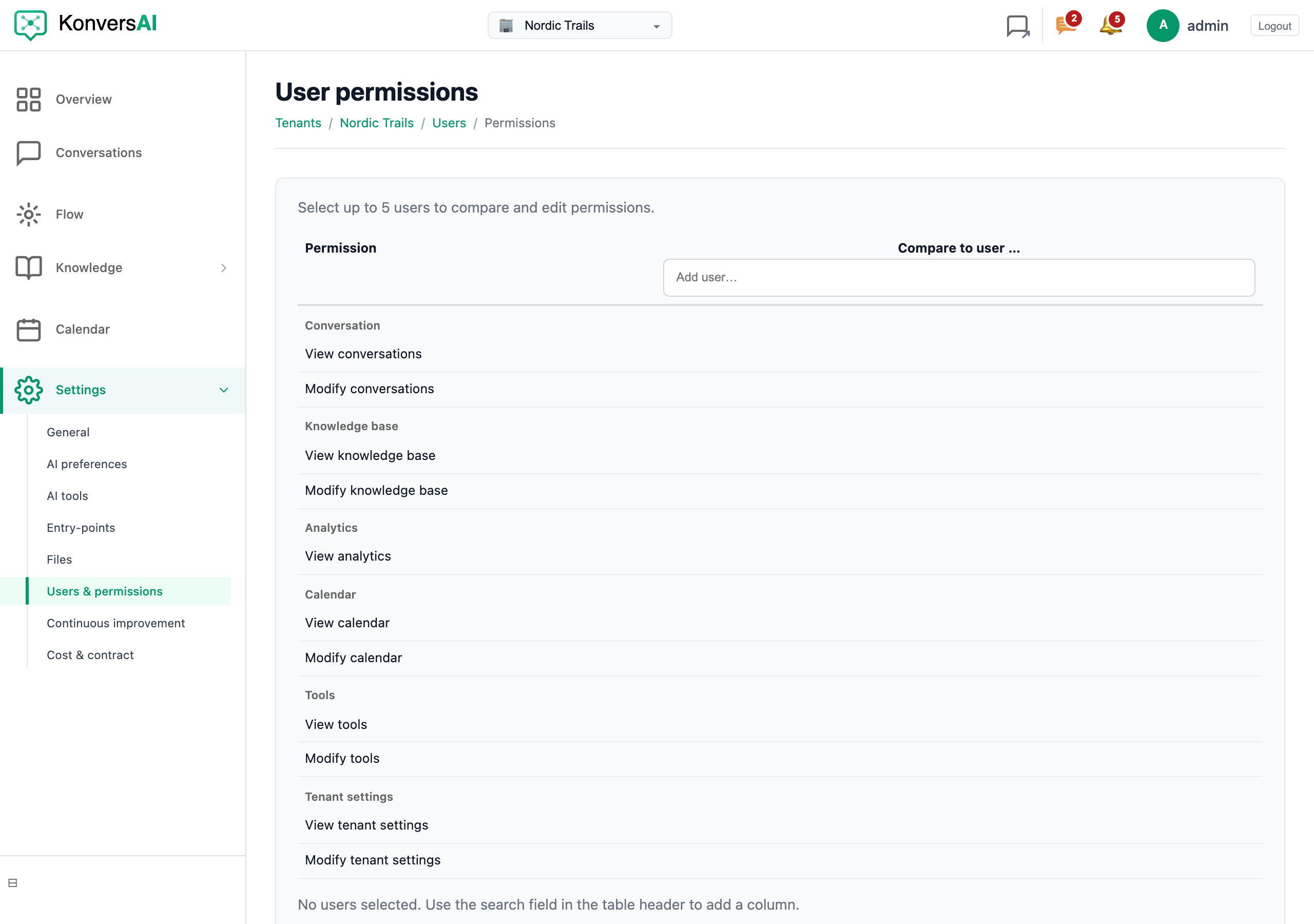
The permission matrix. Compare up to five users side by side.
-
Add more columns to compare people. Type a name into the Add user… box in the table header, then select a name in the list. You can compare five users at one time. The help text at the top says: Select up to 5 users to compare and edit permissions. The Add user… box disappears when you reach five. Select × above a name to remove that column.
-
Change the role in the list under a person’s name. The list holds Tenant Admin and Tenant Operator. KonversAI saves the change at once, and reloads that column. KonversAI refuses the change with Cannot remove the last tenant administrator. when the person is your only Tenant Admin.
-
Switch a single permission with its checkbox. The rows are grouped under Conversation, Knowledge base, Analytics, Calendar, Tools and Tenant settings. The first column is Permission. KonversAI saves each checkbox at once. There is no save button.
-
Read an error under the person’s name when a change fails. Failed to update role and Failed to update permission appear there, and KonversAI puts the checkbox back to its old state.
The User permissions screen opens empty when you go to it directly. It then shows No users selected. Use the search field in the table header to add a column. Type a name into Add user… to start.
The rows in the matrix
Section titled “The rows in the matrix”The User permissions screen in the KonversAI console has eleven permission rows, in six groups. Select Settings in the left sidebar, select Users & permissions, then select a value in the Role column, to reach the screen.
| Group | Permission | What it gives |
|---|---|---|
| Conversation | View conversations | Reads conversations and messages in the console. |
| Conversation | Modify conversations | Replies, takes over a conversation, and closes it. |
| Knowledge base | View knowledge base | Opens Knowledge > Documents and Knowledge > Import. |
| Knowledge base | Modify knowledge base | Creates, edits, publishes and deletes documents. |
| Analytics | View analytics | Opens Overview, Flow, Knowledge > Dashboard and Knowledge > Topics. |
| Calendar | View calendar | Opens Calendar and reads bookings. Needs the Calendar feature. |
| Calendar | Modify calendar | Creates, changes and cancels bookings and calendars. |
| Tools | View tools | Opens Settings > AI tools and reads the tool list. |
| Tools | Modify tools | Adds, edits, validates and deletes assistant tools. |
| Tenant settings | View tenant settings | Opens Settings in the left sidebar and reads the settings. |
| Tenant settings | Modify tenant settings | Saves a change on the settings screens, such as Assistant preferences. |
A Tenant Admin column shows every one of these eleven boxes selected, and every box locked. That is correct: the role carries every permission by itself, so there is nothing to switch. To limit a person, change their role to Tenant Operator first, then switch the boxes.
What is the difference between Tenant Admin and Tenant Operator?
Section titled “What is the difference between Tenant Admin and Tenant Operator?”Tenant Admin and Tenant Operator are the two console roles in KonversAI. You see them in the Role column of the Members table on the Users screen: select Settings in the left sidebar, then select Users & permissions. A Tenant Admin holds every permission in the tenant automatically. You cannot take a single permission away from a Tenant Admin, and their column on the User permissions screen shows every box selected and locked. A Tenant Operator holds only the permissions somebody granted them, one by one, in the matrix. Give Tenant Operator to a person who answers customers. Give Tenant Admin to a person who must also change settings and manage users.
What can a new Tenant Operator do on their first day?
Section titled “What can a new Tenant Operator do on their first day?”A Tenant Operator in the KonversAI console starts with four permissions: View conversations, Modify conversations, View contacts and View analytics. KonversAI grants them when the person opens the invitation link and signs in. With those, the person reads and answers conversations, sees contact details, and reads the Overview dashboards. They also see Flow, Knowledge > Dashboard and Knowledge > Topics, because those three follow View analytics. When your tenant has the forms feature, they also see Conversations > Form submissions, which follows View conversations. They do not see Knowledge > Documents, Calendar or Settings in the left sidebar. To add more, a Tenant Admin opens Settings > Users & permissions, selects the value in the Role column, and switches the boxes on the User permissions screen.
Why can I not switch off a permission for a Tenant Admin?
Section titled “Why can I not switch off a permission for a Tenant Admin?”A Tenant Admin in the KonversAI console holds every permission by the role itself, not by a grant. Open Settings > Users & permissions, then select the value in the Role column, to see the User permissions screen. That person’s column shows every box selected and every box locked, because there is no grant to remove. Change the role first: select Tenant Operator in the list under their name. The boxes then unlock, and you switch each permission on or off. KonversAI stops you with Cannot remove the last tenant administrator. when that person is the only Tenant Admin in your tenant.
How many people can I compare at one time?
Section titled “How many people can I compare at one time?”Five. The User permissions screen in the KonversAI console holds five user columns. Open Settings > Users & permissions, then select a value in the Role column, to reach it. The help text at the top says: Select up to 5 users to compare and edit permissions. Type a name into the Add user… box in the table header to add a column. The Add user… box disappears when you reach five columns. Select × above a name to remove that column and free a place.
I do not see the Add user… box or any checkbox. Why?
Section titled “I do not see the Add user… box or any checkbox. Why?”You are not a Tenant Admin. The User permissions screen in the KonversAI console shows the red message Only tenant administrators can manage user permissions. to everybody else. Open Settings > Users & permissions, then select the value in the Role column, to reach the screen. Without the Tenant Admin role, KonversAI hides the Add user… box, hides the × remove control, and locks every checkbox and every role list. You can still read the column you arrived with. Ask a Tenant Admin to make the change for you.
Can I control who sees the Cost & contract screen?
Section titled “Can I control who sees the Cost & contract screen?”Not from the matrix. The User permissions screen in the KonversAI console has eleven rows, and billing is not one of them. Open Settings > Users & permissions, then select a value in the Role column, to see the rows. The sidebar item Settings > Cost & contract needs a billing permission that the matrix cannot grant. In practice this means only a Tenant Admin sees Cost & contract, because a Tenant Admin holds every permission by the role. Contact KonversAI support if you need a Tenant Operator to read the billing screens.
Where is the View contacts permission in the matrix?
Section titled “Where is the View contacts permission in the matrix?”It is not there. The User permissions screen in the KonversAI console shows eleven rows, and View contacts is not one of them. Open Settings > Users & permissions, then select a value in the Role column, to see the rows. KonversAI still grants View contacts to every new Tenant Operator when they accept their invitation, and the permission keeps working. You just cannot switch it off in the matrix. Switching another checkbox does not touch it: KonversAI keeps the permissions that have no row.
How do I stop a person from reaching my tenant at all?
Section titled “How do I stop a person from reaching my tenant at all?”Deactivate them. Removing every checkbox is not enough, because a person with no permissions still holds a place in your tenant. Open Settings > Users & permissions in the KonversAI console, then select the person’s name in the User column of the Members table. Their profile opens. Select Edit, then select Deactivate under Admin actions. A window opens with the heading Deactivate this user? and the text … will no longer be able to access this tenant. Their previous conversations and activity will stay visible, and you can activate them again later. Select Deactivate user to confirm. The Status column then shows Inactive. Only a Tenant Admin sees Edit on another person’s profile, and KonversAI refuses with Cannot deactivate the last tenant administrator. when that person is your only Tenant Admin.
Can I change a role without opening the matrix?
Section titled “Can I change a role without opening the matrix?”No. The role list lives on the User permissions screen in the KonversAI console, under each person’s name. Open Settings in the left sidebar, select Users & permissions, then select the value in the Role column of the Members table. That link opens the User permissions screen with that person already in a column. Select Tenant Admin or Tenant Operator in the list under their name. KonversAI saves the new role at once and reloads that column, so the checkboxes match the new role right away.
Last reviewed . Tell us when a step no longer matches the product.