

Take over a conversation from the assistant
Summary
Section titled “Summary”You take over a conversation on the Conversations screens in the KonversAI console. KonversAI has no separate take-over button. You take over when you send a reply. The moment you select Send, KonversAI pauses the assistant for that one conversation, and a banner appears that reads Autoresponder paused — you are handling this conversation manually. The assistant sends no more replies in the conversation until you select Re-enable autoresponder.
Who can do this
Section titled “Who can do this”A tenant administrator, or a Tenant Operator. Both roles can send a reply and pause the assistant in the KonversAI console. Other roles can read a conversation but cannot reply. If you cannot see Conversations in the left sidebar of the console, ask an administrator to change your role.
Before you start
Section titled “Before you start”Sign in to the KonversAI console with a tenant administrator or Tenant Operator role. Only these two roles can take over a conversation from the assistant.
Know that the take-over is manual in both directions. KonversAI pauses the assistant when you send your first reply. KonversAI never restarts the assistant on its own. There is no timeout. The conversation stays with you until a person selects Re-enable autoresponder in the console.
Decide what you want to write. The customer reads your reply in the chat widget in the same style as an assistant reply. The chat widget shows the customer no notice that a person now answers.
-
Select Conversations in the left sidebar of the KonversAI console, then select Live overview.
-
Read the two lanes on the Live overview screen. The Waiting now lane holds conversations where a customer waits for a reply. The Needs attention lane holds conversations that KonversAI ranks as a problem. Each lane shows a count next to the lane name.
-
Optional: use the Queue filter to show one queue only. The default is All queues.
-
Select a conversation row. The conversation thread opens. You can also reach the same thread through Conversations and then Chat.
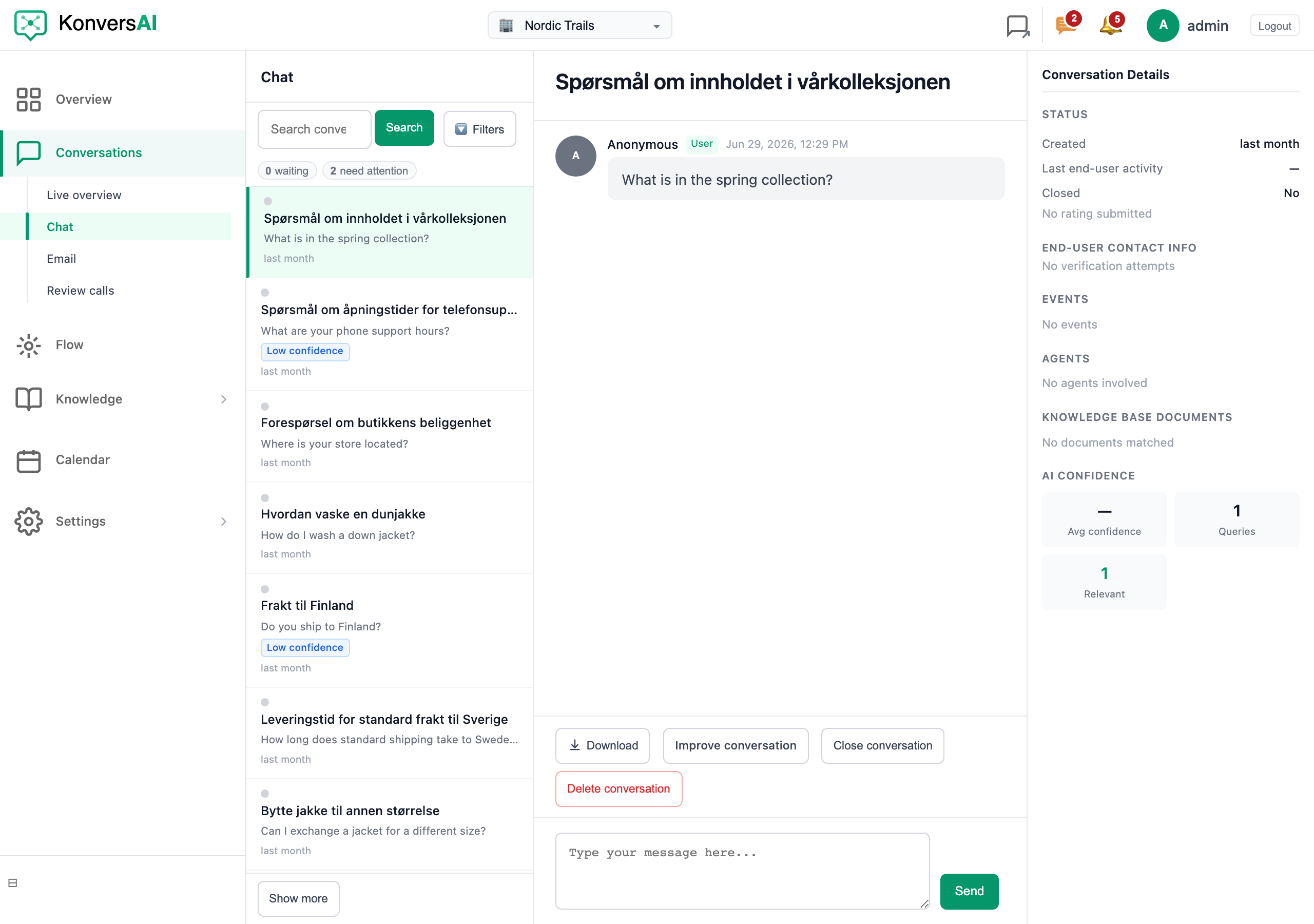
The Chat screen. Select a conversation in the list to read it.
-
Read the last messages. Each message carries a role label: User for the customer, System agent for the assistant, and Human agent for a person on your team.
-
Type your reply in the message box at the bottom of the thread. The message box shows the placeholder Type your message here…
-
Select Send. KonversAI creates your message and pauses the assistant for this conversation at the same moment. The button reads Sending… while KonversAI saves the message.
-
Check the banner at the top of the conversation. The banner reads Autoresponder paused — you are handling this conversation manually. The banner confirms that the assistant no longer replies in this conversation.
-
Answer the customer yourself. Each reply you send appears in the thread with the role label Human agent.
-
When you finish, select Re-enable autoresponder in the banner. The banner disappears, and the assistant answers the next customer message. Skip this step to keep the conversation with your team.
Where is the Take over button?
Section titled “Where is the Take over button?”There is none. The KonversAI console has no take-over button and no take-over confirmation window. You take over a conversation when you type a reply in the message box and select Send. KonversAI pauses the assistant at that moment and shows the banner Autoresponder paused — you are handling this conversation manually. at the top of the conversation. Typing alone changes nothing. The take-over happens when you send.
How do I give the conversation back to the assistant?
Section titled “How do I give the conversation back to the assistant?”Open the conversation in the Conversations screens of the KonversAI console. Select Re-enable autoresponder in the banner at the top of the conversation. The banner reads Autoresponder paused — you are handling this conversation manually. and holds that button. The assistant answers the next customer message in the conversation. KonversAI never gives control back on its own. There is no timeout and no automatic return.
Does the customer see that a person took over?
Section titled “Does the customer see that a person took over?”No. The chat widget shows your reply in the same style as an assistant reply. The chat widget sends the customer no transfer notice, no name and no “you now talk to a person” message. This behaviour is fixed today. There is no tenant setting that turns a handover notice on. Write the notice yourself in your first reply if you want the customer to know. For example, start with your name.
The assistant stopped replying to a conversation nobody took over. Why?
Section titled “The assistant stopped replying to a conversation nobody took over. Why?”KonversAI also pauses the assistant by itself when a customer goes off topic repeatedly in the same conversation. The assistant then sends a stop message to the customer and proposes to close the conversation. The console shows the same banner, Autoresponder paused — you are handling this conversation manually., even though no person replied. Select Re-enable autoresponder in the banner to let the assistant answer again.
What does the Unattended chip on Live overview mean?
Section titled “What does the Unattended chip on Live overview mean?”Unattended is an attention reason chip on the Live overview screen under Conversations in the KonversAI console. KonversAI adds the chip to every conversation where the assistant is paused. The chip therefore appears as soon as you take over, and it stays until a person selects Re-enable autoresponder. The other chips are Reply failed, Handover, No answer, Low confidence, Off topic and Wrap-up. Unattended is your reminder that a customer waits for a person, not for the assistant.
I see “Failed to send message”. What is wrong?
Section titled “I see “Failed to send message”. What is wrong?”Your role cannot reply to conversations in this tenant. KonversAI shows the message box to every user who can read a conversation, but only a tenant administrator and a Tenant Operator can send a reply. Ask an administrator to change your role. The same cause gives the message Failed to toggle autoresponder when you select Re-enable autoresponder.
Can two people take over the same conversation?
Section titled “Can two people take over the same conversation?”Yes, and KonversAI does not stop them. The console does not lock a conversation to one person. Both replies reach the customer, and both carry the role label Human agent. Use the Queue filter on the Live overview screen to split the work between your team, and agree who owns each queue.
Does KonversAI record who took over?
Section titled “Does KonversAI record who took over?”Yes. KonversAI writes an audit event on the conversation each time the autoresponder state changes. The event stores the display name of the person who sent the first reply, or of the person who selected Re-enable autoresponder. An administrator reads these events in the KonversAI admin interface.
Last reviewed . Tell us when a step no longer matches the product.