

Connect your website as a knowledge source
Summary
Section titled “Summary”You connect a website on the Import screen in the KonversAI console. KonversAI first discovers the addresses of your pages. You then choose which pages to keep in the knowledge base. KonversAI fetches those pages, and the assistant answers customers from them. KonversAI reads public pages only.
Who can do this
Section titled “Who can do this”A tenant administrator, or any team member whose role has the View knowledge base and Modify knowledge base permissions. An administrator sets these on Settings > Users & permissions in the KonversAI console. If you do not see Knowledge > Import in the left sidebar, you do not have this access. Ask an administrator to change your role.
Before you start
Section titled “Before you start”You connect a website on the Import screen in the KonversAI console. Have the
address of the website ready before you start. For a crawl, use the home page,
for example https://example.com. For a sitemap, use the sitemap file, for
example https://example.com/sitemap.xml. For one page, use that page address,
for example https://example.com/page.
The pages must be public. KonversAI cannot read a page behind a login or a password.
A crawl has default limits. KonversAI follows a maximum of 5 levels of links, and it discovers a maximum of 500 addresses for one import. A sitemap import has no such limit, so use the Sitemap tab for a large site.
-
Select Knowledge in the left sidebar of the KonversAI console, then select Import. The Imports screen opens.
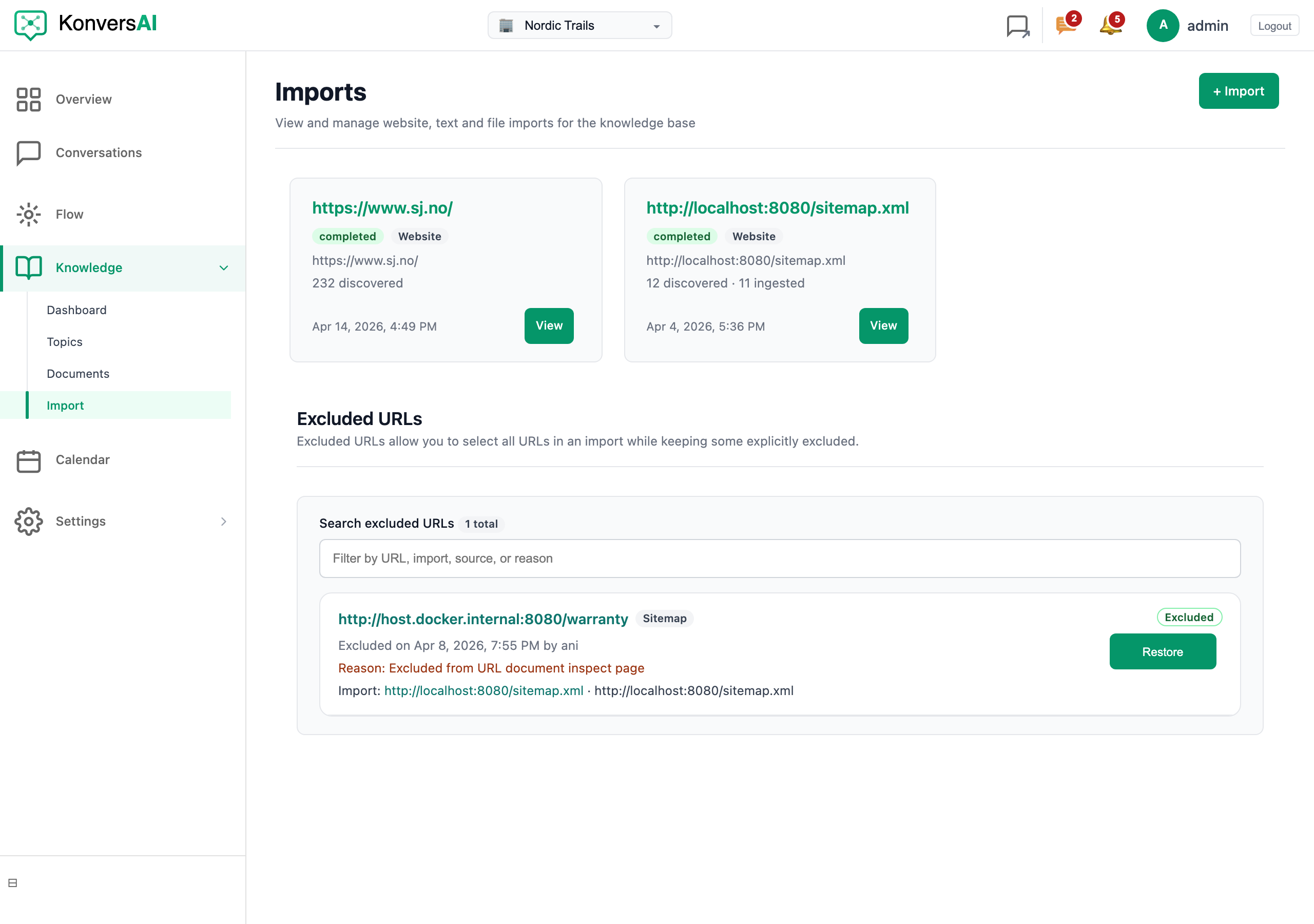
The Imports screen. Select + Import to add a knowledge source.
-
Select + Import. The Start import screen opens with three cards: Website, File upload and Text.
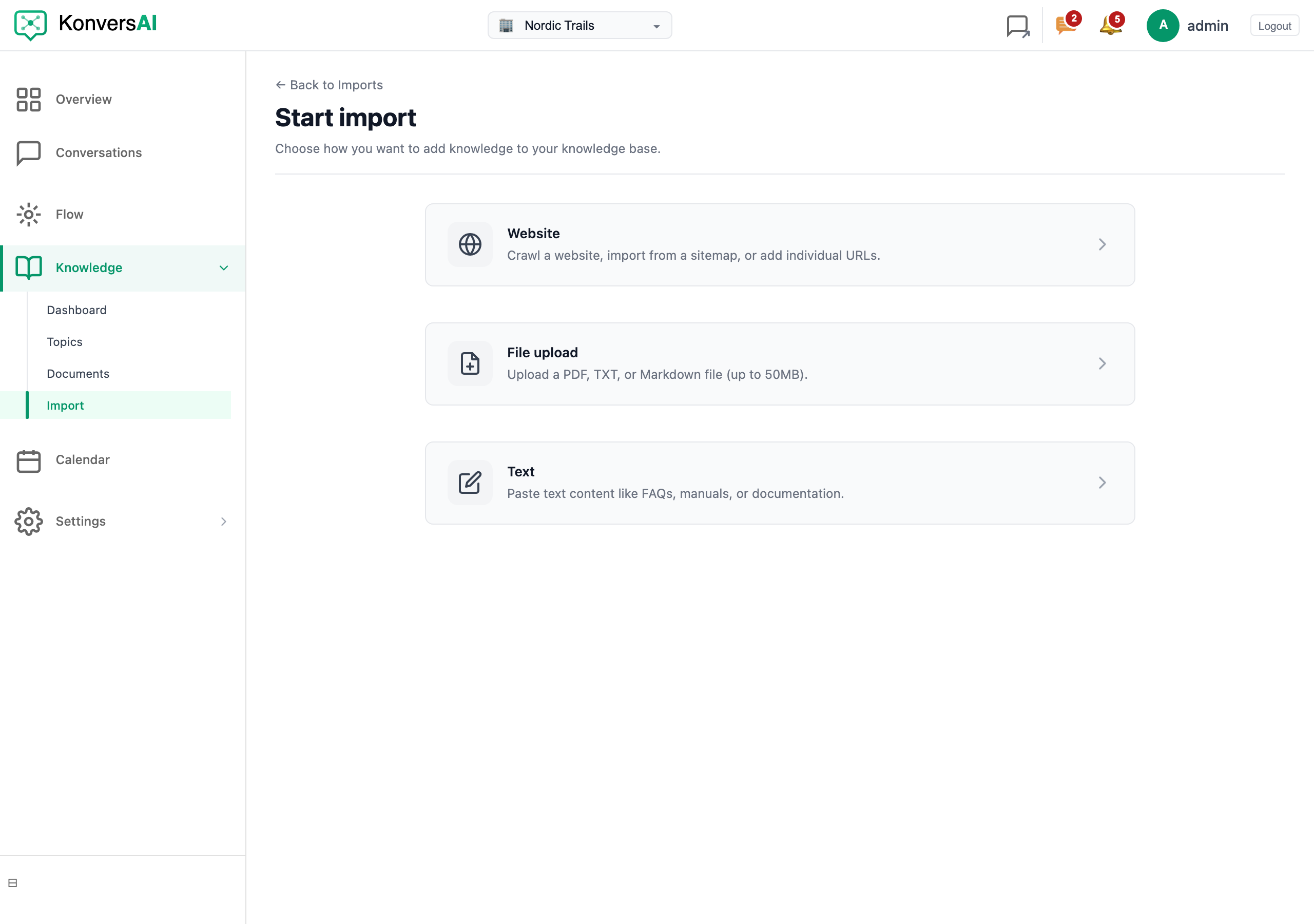
The three source types. Select Website to crawl a site or read a sitemap.
-
Select the Website card. The Website import screen opens with the Add links card.
-
Select one tab in the Add links card:
- Crawl links — KonversAI follows the links on your website and finds the pages. Use this tab when you have no sitemap. KonversAI follows a maximum of 5 levels of links and finds a maximum of 500 addresses.
- Sitemap — KonversAI reads the pages listed in your sitemap file. Use this tab for a large site.
- Individual link — KonversAI adds one page only.
-
Type the address in URL.
-
Select Fetch links. On the Individual link tab, the button is named Add link. KonversAI returns to the Imports screen and starts discovery.
-
Find the new card on the Imports screen and select View. The website import screen opens. When the status is pending, select Start Discovery.
-
Wait for discovery to finish. A banner shows Crawling website… with the number of addresses found.
-
Open the Inventory tab. The heading is URLs selected for sync. Tick the pages and the folders you want in the knowledge base. Each tick makes a sync rule. Untick a folder to keep it out.
-
Select Sync at the top of the website import screen. KonversAI fetches the pages you selected. The Sync button appears after the first discovery run completes.
Each address shows a status badge: New, Crawling, Processing, Ready, Failed or Excluded. Ready means the page content is in the knowledge base. The new documents appear under Knowledge > Documents.
How long does the import take?
Section titled “How long does the import take?”It depends on the size of your website. On the website import screen in the KonversAI console, a banner shows Crawling website… with the number of addresses found and the number of pages fetched. A crawl finds a maximum of 500 addresses and follows a maximum of 5 levels of links, so a crawl stops at those limits. A large site with a sitemap takes longer, because the sitemap has no such limit.
Does KonversAI keep my website up to date?
Section titled “Does KonversAI keep my website up to date?”Yes. KonversAI refreshes a website import automatically. A sitemap import refreshes every 60 minutes. A crawl import refreshes every 7 days. KonversAI fetches new and changed pages that a sync rule covers. To refresh the import now, open the import under Knowledge > Import in the console and select Sync.
Why is one of my pages missing from the list?
Section titled “Why is one of my pages missing from the list?”Three reasons are common. The page has no link from another page, so a crawl cannot find it. The page is not in your sitemap. Or the page is deeper than 5 levels of links, or beyond the 500-address crawl limit. To add the missing page, go to Knowledge > Import in the KonversAI console, select + Import, select the Website card, open the Individual link tab, and add the page address.
How do I stop KonversAI from importing part of my website?
Section titled “How do I stop KonversAI from importing part of my website?”Open the website import under Knowledge > Import in the KonversAI console. On the Inventory tab, untick the folder or the page. KonversAI makes a rule that prevents those addresses from being downloaded. You can also open the Add rule window and select Prevent these URLs from being downloaded. Removed addresses show in the Excluded URLs list on the Imports screen, where Restore brings one back.
The check says my server is blocking KonversAI. What do I do?
Section titled “The check says my server is blocking KonversAI. What do I do?”Bot protection in front of your website, for example Cloudflare, Amazon
CloudFront, Akamai or Imperva, refused the KonversAI fetcher. On the Start
import screen in the KonversAI console the check shows Your server is
blocking us from fetching data. Ask your web team to allow the user agent
KonversAI-Bot. The page Allow the KonversAI bot on your
website has the exact text to send them.
When the check also shows Sitemap found, you can select Create & configure
import now; pages the protection still refuses show Failed until the rule
is in place.
Can KonversAI read pages that need a login?
Section titled “Can KonversAI read pages that need a login?”No. KonversAI reads public pages only. A page behind a login, a password or a paywall fails with the status Failed. To bring that content into the knowledge base, use Knowledge > Import > + Import and choose the File upload card or the Text card instead.
What is a sync rule?
Section titled “What is a sync rule?”A sync rule decides which addresses KonversAI keeps in sync with your knowledge base. The console explains it this way: Sync rules decide which URLs are kept in sync with your knowledge base. When new pages appear on your website, matching rules determine if they are downloaded automatically. You make a rule when you tick a folder on the Inventory tab of a website import. You can also select Add rule, type a URL prefix, and choose include sub-pages or only this page.
I selected pages, but the assistant still does not know them. Why?
Section titled “I selected pages, but the assistant still does not know them. Why?”A tick on the Inventory tab marks the page for sync. It does not fetch the page at that moment. KonversAI fetches the page on the next sync. Open the website import under Knowledge > Import in the KonversAI console and select Sync to fetch now. On the Sync status tab, an address shows Ready when the content is in the knowledge base.
Can I connect more than one website?
Section titled “Can I connect more than one website?”Yes. Each website is a separate import. Go to Knowledge > Import in the KonversAI console, select + Import, select the Website card, and add the next address. All imports show as cards on the Imports screen, and all their documents go into the same knowledge base.
Last reviewed . Tell us when a step no longer matches the product.