

Import documents from SharePoint
Summary
Section titled “Summary”A SharePoint import copies the text of the files in one SharePoint folder into your KonversAI knowledge base. The assistant can then answer with that text. You start the import on the Import from SharePoint screen in the KonversAI console. Select Knowledge in the left sidebar, then select Imports, then New import. On the Start import screen, select SharePoint (preview).
KonversAI first lists the files in the folder and its subfolders. Nothing is imported yet. You clear the folders and files that the assistant must not know, then you start the import. The import page then shows what happened to each file. After the import, KonversAI reads the folder again every hour and keeps the documents the same as the files. See Keep the documents in sync.
KonversAI imports PDF, Word (.docx), PowerPoint (.pptx), text and Markdown files up to 50 MB. A folder import lists up to 5000 files.
Who can do this
Section titled “Who can do this”A team member with the Modify knowledge base permission starts, reviews, syncs and deletes a SharePoint import. A Tenant Admin has this permission, always. A team member with View knowledge base can open the import page. To connect SharePoint or add a folder, a team member needs the Modify tenant settings permission.
Before you start
Section titled “Before you start”Connect SharePoint first, and give KonversAI access to the folder. See Connect SharePoint or Connect SharePoint with your own app. If SharePoint is not connected, the Import from SharePoint screen shows Not connected.
Put only documents that you want to share in the folder. Anyone who chats with your assistant can get answers from the text of the documents that you import.
-
Select Knowledge in the left sidebar of the KonversAI console, then select Imports. Select New import. The Start import screen opens.
-
Select SharePoint (preview). The Import from SharePoint screen opens. It lists the Folders that KonversAI can read.
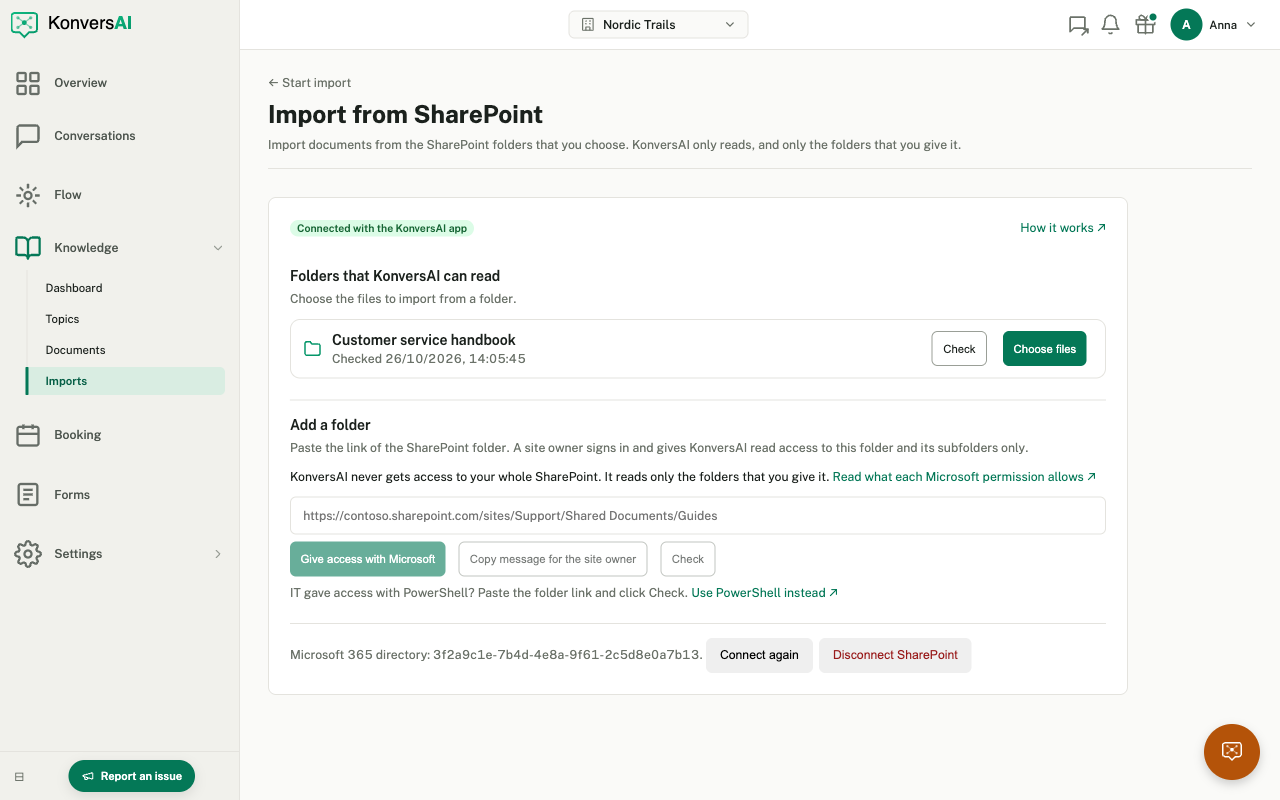
Pick a folder that KonversAI can read.
-
Select Choose files next to the folder. If the folder is not in the list, a team member with Modify tenant settings adds the folder first, under Add a folder. See Connect SharePoint.
-
KonversAI reads the folder in SharePoint. The import page then shows all the files as a folder tree. Nothing is imported yet. All files that KonversAI can import are selected.
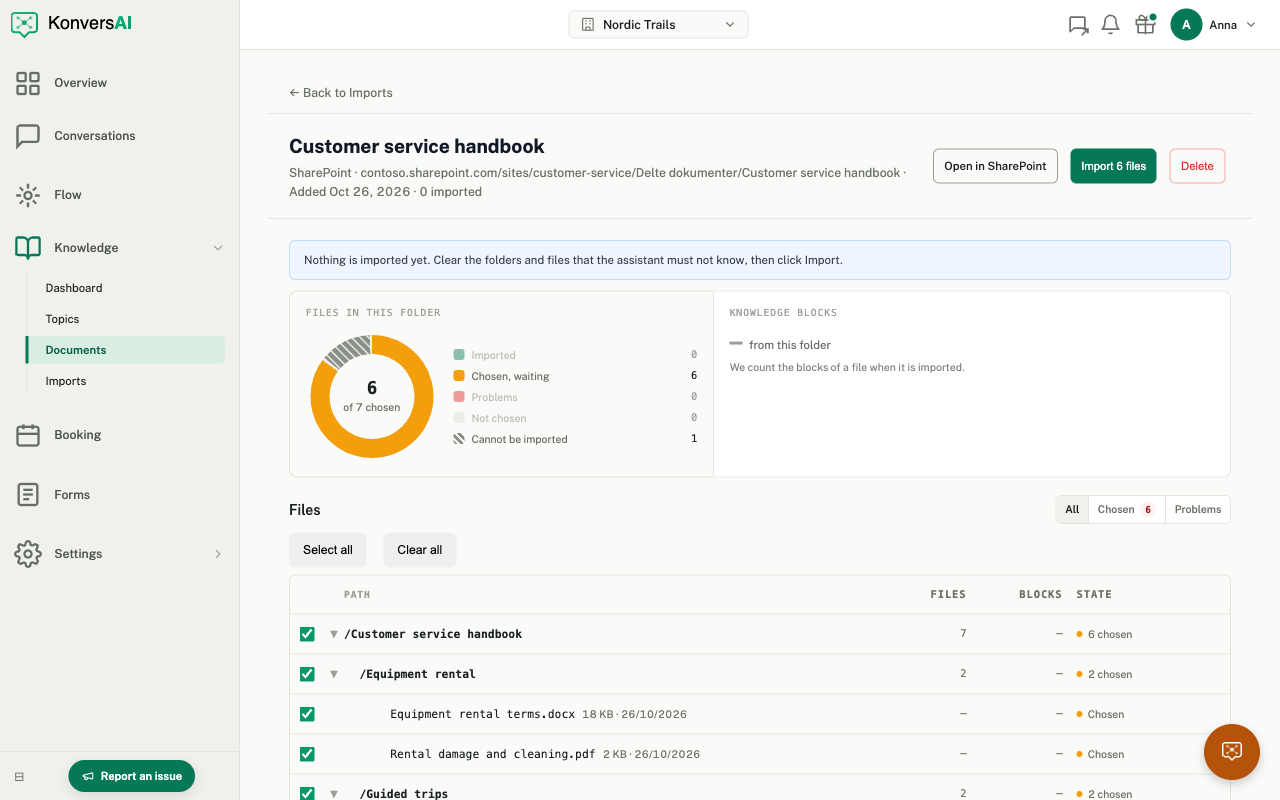
Clear the folders and files that the assistant must not know.
-
Clear the tick box of each folder or file that the assistant must not know. A folder tick box selects or clears all the files under the folder. Use Select all and Clear all to change all files at once.
-
Select Import N files at the top of the page. KonversAI imports the selected files. The state of each file changes from Chosen to Importing, then to Imported.
-
When the import is finished, select Imported next to a file to open the document in the knowledge base.
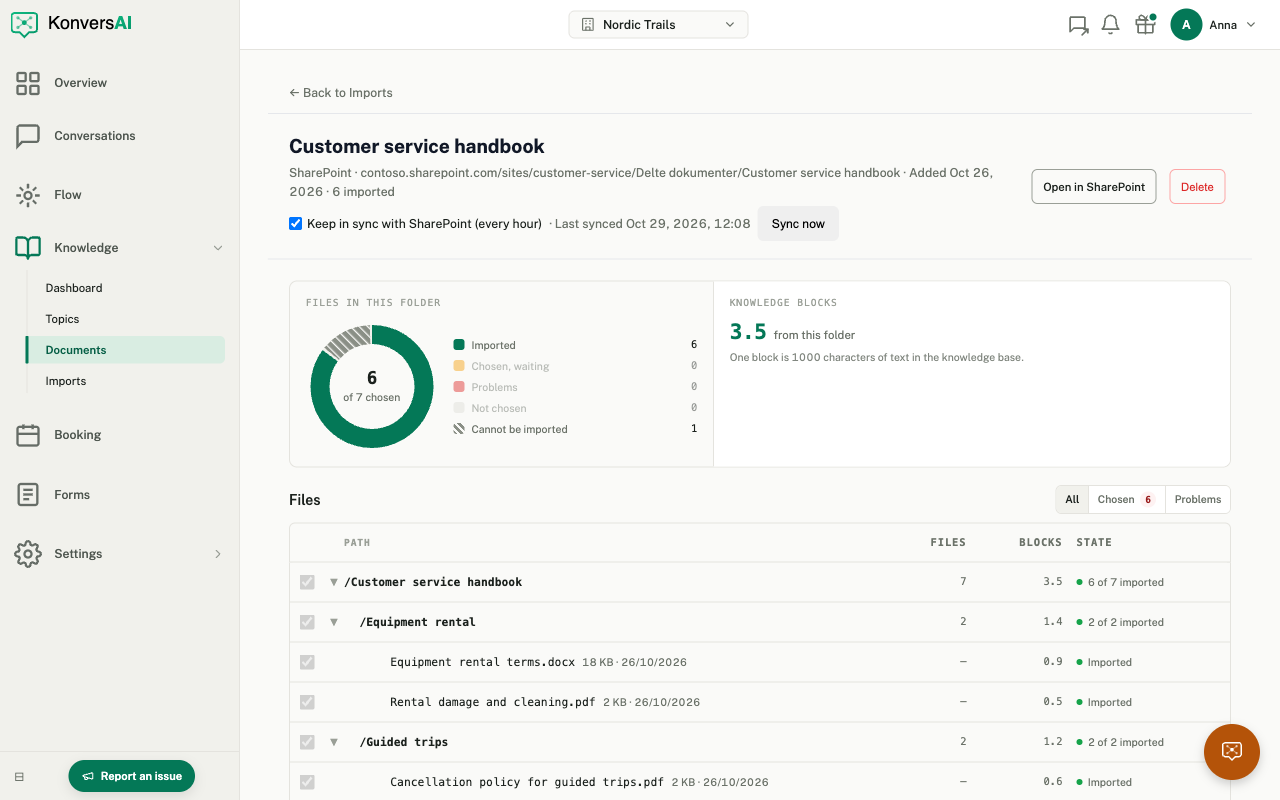
After the import: the sync, the state of each file, and the knowledge blocks that the folder adds.
Read the import page
Section titled “Read the import page”The import page of a SharePoint folder has two charts and a file list.
- Files in this folder is a ring of all the files, by state: Imported, Chosen, waiting, Problems, Not chosen and Cannot be imported. The number in the middle is the number of chosen files.
- Knowledge blocks shows the blocks that this folder adds, and the blocks that your knowledge base uses against your plan. One block is 1000 characters of text in the knowledge base. KonversAI counts the blocks of a file when it is imported.
- Files lists the files. All shows the folder tree. Chosen and Problems show flat lists. The Blocks column shows the blocks of each imported file.
What the states of a file mean
Section titled “What the states of a file mean”- Chosen: the file is selected, and KonversAI imports it when you select Import N files.
- Not chosen: you cleared the file. KonversAI does not import it.
- Importing: KonversAI is reading the file now.
- Imported: the text of the file is a document in your knowledge base.
- File type not supported and File is larger than 50 MB: KonversAI cannot import the file. These files show as Cannot be imported in the ring.
- No text found (a scanned PDF needs OCR): the PDF has pictures of text, not text. Save the PDF with text recognition (OCR) in SharePoint. The next sync reads it again.
- File could not be read (damaged or encrypted): open the file in Office, remove the password or save it again in SharePoint. The next sync reads it again.
- Deleted or moved out of the folder in SharePoint: the file is not in the folder now. KonversAI archived its document, so the assistant does not use it. If the file comes back, the next sync publishes the document again.
Files with a problem show in the Problems view. When the import is finished, select Try N files again to import the files with a problem again.
Keep the documents in sync
Section titled “Keep the documents in sync”After the import, KonversAI reads the folder again every hour:
- A new file in the folder or in a new subfolder is imported. If you cleared all the files of a folder before the import, new files in that folder are not imported.
- A changed file updates its document.
- A file that is deleted, or moved out of the folder, has its document archived.
Change the files in SharePoint, not in the knowledge base. The knowledge base shows a document from SharePoint as read-only, with Open in SharePoint at the top of the page. Only team members see Open in SharePoint, in the KonversAI console. The assistant does not show the SharePoint address of a file to the people who chat with it.
The import page shows when the last sync was. Select Sync now to sync at once. To stop the sync, clear Keep in sync with SharePoint (every hour). The documents then stay as they are. If a sync fails, for example because KonversAI can no longer read the folder, the import page says “The last sync failed”, with the reason. The documents do not change.
The sync reads up to 5000 files. If the folder has more files, the import page says “Only the first 5000 files are synced.”, and the sync archives no documents.
Delete a SharePoint import
Section titled “Delete a SharePoint import”Open the import page and select Delete. KonversAI deletes the import and the documents that it made. The files in SharePoint do not change.
You cannot delete one SharePoint document in the knowledge base. To remove one document, delete the file in SharePoint or move it out of the folder. The next sync archives the document.
Which files can KonversAI import from SharePoint?
Section titled “Which files can KonversAI import from SharePoint?”KonversAI imports PDF, Word (.docx), PowerPoint (.pptx), text (.txt) and Markdown (.md) files up to 50 MB. KonversAI keeps the headings, lists and tables. Other files, such as images, spreadsheets, videos and the old .doc and .ppt formats, show as File type not supported.
Does the assistant learn the whole folder at once?
Section titled “Does the assistant learn the whole folder at once?”No. KonversAI first lists the files, and nothing is imported until you select Import N files. Clear the files and folders that the assistant must not know before you start the import.
Does KonversAI see the subfolders?
Section titled “Does KonversAI see the subfolders?”Yes. A SharePoint import lists the files in the folder and in all its subfolders. The import page shows them as a folder tree.
What happens when we change a file in SharePoint?
Section titled “What happens when we change a file in SharePoint?”The next sync updates the document, within an hour. Select Sync now on the import page to update it at once. See Keep the documents in sync.
Why can we not edit or delete a SharePoint document in the knowledge base?
Section titled “Why can we not edit or delete a SharePoint document in the knowledge base?”The file in SharePoint is the source of the document. The next sync would undo a change in the knowledge base. To change the document, change the file in SharePoint. To remove the document, delete the file in SharePoint or move it out of the folder. The next sync archives the document, within an hour.
Why does a PDF show “No text found”?
Section titled “Why does a PDF show “No text found”?”The PDF has pictures of text, for example a scanned page, and no text that KonversAI can read. Save the PDF with text recognition (OCR) in your PDF tool, then save it in SharePoint. The next sync reads it again.
How many knowledge blocks does a SharePoint import use?
Section titled “How many knowledge blocks does a SharePoint import use?”One block is 1000 characters of text in the knowledge base. The Knowledge blocks chart on the import page shows the blocks that the folder adds, and the Blocks column shows the blocks of each imported file.
Can we import from more than one SharePoint folder?
Section titled “Can we import from more than one SharePoint folder?”Yes. Give KonversAI access to each folder. Then, on the Import from SharePoint screen, select Choose files next to each folder. Each folder gets its own import.
Last reviewed . Tell us when a step no longer matches the product.