

Add a team member
Summary
Section titled “Summary”You add a team member on the Users & permissions screen in the KonversAI console. You paste one or more email addresses, pick a role, and send the invitations. KonversAI has two roles you can invite: Tenant Admin and Tenant Operator. The person joins your workspace when they open the invitation link and sign in.
Who can do this
Section titled “Who can do this”Only a Tenant Admin can invite a team member. The 👥 Invite Users card and the Pending invitations card on the Users & permissions screen in the KonversAI console appear for a Tenant Admin only. The API answers Only tenant admins can manage invitations. to anyone else. A Tenant Operator only sees Settings in the left sidebar when a Tenant Admin gives them the View tenant settings permission.
Before you start
Section titled “Before you start”Collect the email addresses of the people you want to invite. Each person must use that exact address when they sign in. KonversAI refuses the invitation when the address does not match.
Decide the role for each person. Tenant Admin can change every setting, invite other people, and edit permissions. Tenant Operator starts with four permissions: View conversations, Modify conversations, View contacts and View analytics.
Check your seats. The 👥 Invite Users card on the Users & permissions screen shows the text N of M included seats used. When the new invitations go past your included seats, KonversAI asks you to accept the extra cost before it sends anything.
-
Select Settings in the left sidebar of the KonversAI console, then select Users & permissions.
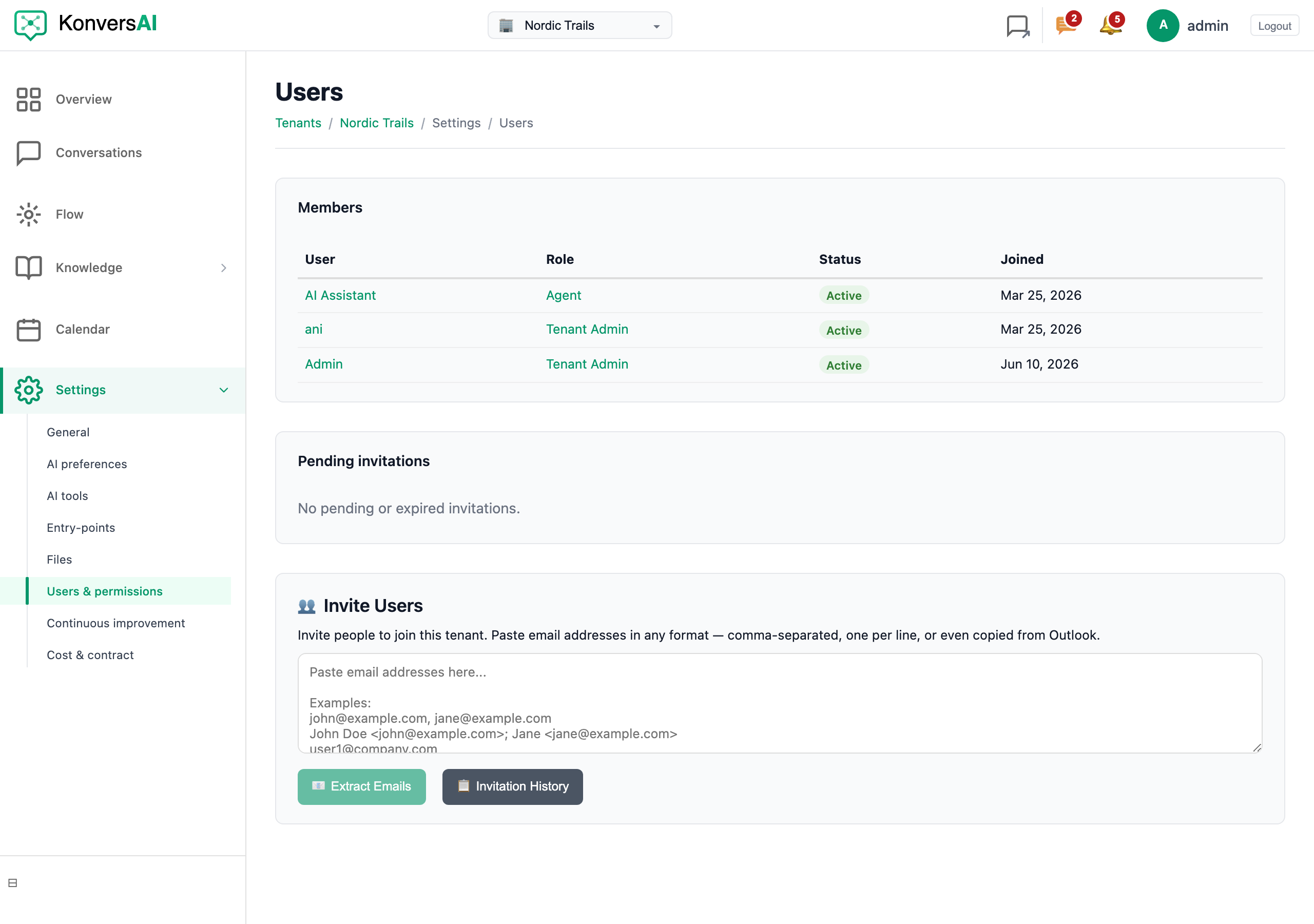
The Users screen. Invite a colleague here, and see who has not accepted yet.
-
Go to the 👥 Invite Users card at the bottom of the screen.
-
Paste the email addresses into the text box. KonversAI reads addresses separated by commas, one address per line, and
Name <address>pairs copied from Outlook. -
Select 📧 Extract Emails. KonversAI shows each address it found. Select × on an address to drop that address. KonversAI shows No valid email addresses found in your input. when the text holds no address.
-
Select the role in the Role: list. Select Tenant Operator for a person who answers conversations. Select Tenant Admin for a person who must also change settings and invite other people.
-
Select ✉️ Send 1 Invitation, or ✉️ Send N Invitations for more than one address. To invite exactly one person and copy the link at the same time, select 🔗 Send Invitation and Copy Link instead.
-
Accept the extra cost if KonversAI shows the panel Additional user seats required. Select Accept and send invitations to continue. Select Cancel to stop and send nothing.
KonversAI then lists each address under ✅ Sent, ⏳ Already invited or 👤 Already a member. Every new invitation appears in the Pending invitations card with the status Pending.
What is the difference between Tenant Admin and Tenant Operator?
Section titled “What is the difference between Tenant Admin and Tenant Operator?”Tenant Admin and Tenant Operator are the two roles you can invite on the Users & permissions screen in the KonversAI console. A Tenant Admin can change every tenant setting, invite people, edit permissions, and start a DNS check for the email channel. A Tenant Operator starts with View conversations, Modify conversations, View contacts and View analytics. A Tenant Admin can add more permissions to a Tenant Operator on the User permissions screen.
The person did not get the invitation email. What do I do?
Section titled “The person did not get the invitation email. What do I do?”Open the Users & permissions screen in the KonversAI console and find the address in the Pending invitations card. Select the ⋯ menu in the Actions column. Select Resend to send the email again. Select Copy Link to copy the invitation link, then send that link to the person yourself, for example in a chat message. Copy Link only appears while the invitation is still valid.
How long does an invitation stay valid?
Section titled “How long does an invitation stay valid?”An invitation stays valid for 10 days by default. After that, the status in the Pending invitations card on the Users & permissions screen changes from Pending to Expired, and the link stops working. Select the ⋯ menu next to an expired invitation and select Resend. KonversAI then issues a new link with a new expiry date.
Can I change someone’s role after they join?
Section titled “Can I change someone’s role after they join?”Yes, if you are a Tenant Admin. Open the Users & permissions screen in the KonversAI console. Select the role in the Role column of the Members table. The User permissions screen opens, where you change the role between Tenant Admin and Tenant Operator and switch single permissions on or off. KonversAI refuses the change with Cannot remove the last tenant administrator. when the person is your only Tenant Admin.
The invitee sees a message about the wrong address. What went wrong?
Section titled “The invitee sees a message about the wrong address. What went wrong?”The person signed in with a different email address than the one you invited. KonversAI shows This invitation was sent to [address], but you are logged in as [other address]. Ask the person to sign out and sign in again with the invited address. If they only have the other address, cancel the old invitation on the Users & permissions screen and invite the correct address.
I invited the wrong address. How do I stop the invitation?
Section titled “I invited the wrong address. How do I stop the invitation?”Open the Users & permissions screen in the KonversAI console and find the address in the Pending invitations card. Select the ⋯ menu in the Actions column, then select Cancel. The status changes to Cancelled and the link stops working. You can only cancel an invitation with the status Pending.
Why does KonversAI ask me to accept extra user seats?
Section titled “Why does KonversAI ask me to accept extra user seats?”Your plan includes a set number of user seats. When the new invitations take you past that number, the 👥 Invite Users card on the Users & permissions screen shows the panel Additional user seats required. The panel states how many users you have now, how many seats your plan includes, and the price of an extra seat per billing period. KonversAI sends nothing until you select Accept and send invitations.
How do I see every invitation I have ever sent?
Section titled “How do I see every invitation I have ever sent?”Open the Users & permissions screen in the KonversAI console and go to the 👥 Invite Users card. Select 📋 Invitation History. The table lists every invitation with its email address, role, status, who sent it, and its expiry date. Select Hide History to close the table again.
Last reviewed . Tell us when a step no longer matches the product.