

Improve a conversation
Summary
Section titled “Summary”You fix the cause of a bad answer on the Improve this conversation screen in the KonversAI console. Open a chat conversation under Conversations > Chat, then select Improve conversation. You say what went wrong, in your own words. KonversAI reads what the assistant saw when it answered and works out why the answer went wrong. It then proposes a plan: the smallest change that fixes the cause. You choose the steps you want. KonversAI prepares each change, and nothing changes until you select Confirm.
You do not need to know which setting is at fault. The Improve this conversation screen says: Your own words are enough. You do not need to know which setting is at fault — that is my job.
Who can do this
Section titled “Who can do this”A Tenant Admin, or a Tenant Operator with the Modify conversations permission, opens a review on the Improve this conversation screen in the KonversAI console. Each change in the plan also needs the permission for its own area: Modify knowledge base for an article, Modify tools for a tool set, and Modify tenant settings for your AI settings or your chat widget text. A Tenant Admin holds every permission. A Tenant Admin grants permissions on Settings > Users & permissions.
Before you start
Section titled “Before you start”The Improve this conversation screen in the KonversAI console works on chat conversations. Open the conversation under Conversations > Chat in the left sidebar. The conversation needs at least one answer from the assistant.
The screen needs the assistant of the KonversAI console to be on for your tenant. When it is off, or when your role cannot open a review, the screen shows This conversation could not be opened for review. Ask your Tenant Admin to check your permissions, or ask your KonversAI contact to turn the console assistant on.
Have the correct facts ready. When the assistant did not know something, tell KonversAI the right answer in your first message: the price, the policy, or the opening hours. KonversAI writes the fix from what you tell it and from the documents you already have. It does not invent facts about your business.
The review never changes the conversation you review, and the customer sees nothing. KonversAI sends no message to the customer.
-
Select Conversations in the left sidebar of the KonversAI console, then select Chat. Open the conversation with the bad answer.
-
Select Improve conversation at the top of the conversation, above the messages.
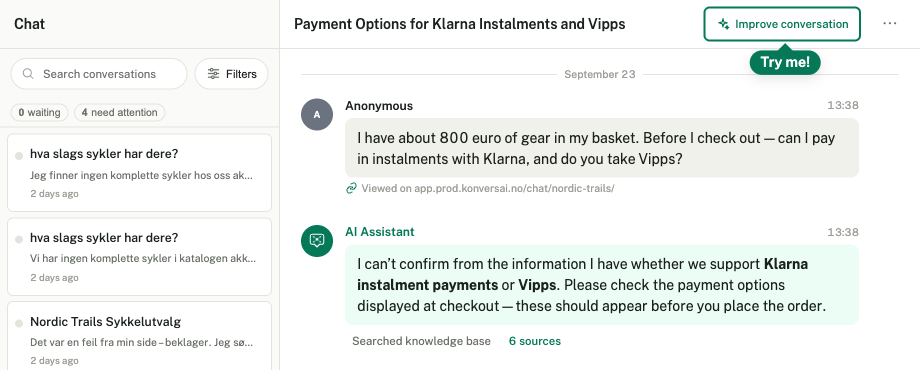
Select Improve conversation at the top of the conversation to start a review.
-
Read the Improve this conversation screen. The conversation you review is on the left, under The conversation. The panel What went wrong? is on the right.
-
Say what went wrong. Type it in the text box, or select one of the ready-made sentences: The answer was too formal and stiff., The answer was wrong., It did not know something it should know., It answered in the wrong language. or It refused to help when it should have helped. Add the correct facts when the answer was wrong or missing.
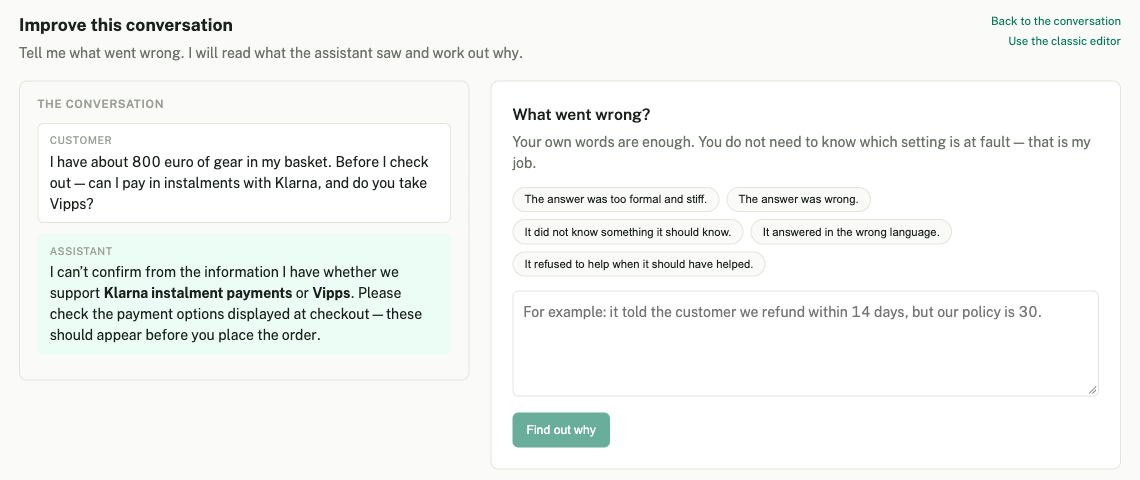
Say what went wrong in your own words, or select one of the ready-made sentences.
-
Select Find out why. KonversAI lists each thing it reads while it works, for example Read what the assistant saw and Searched documents. A review usually takes less than a minute.
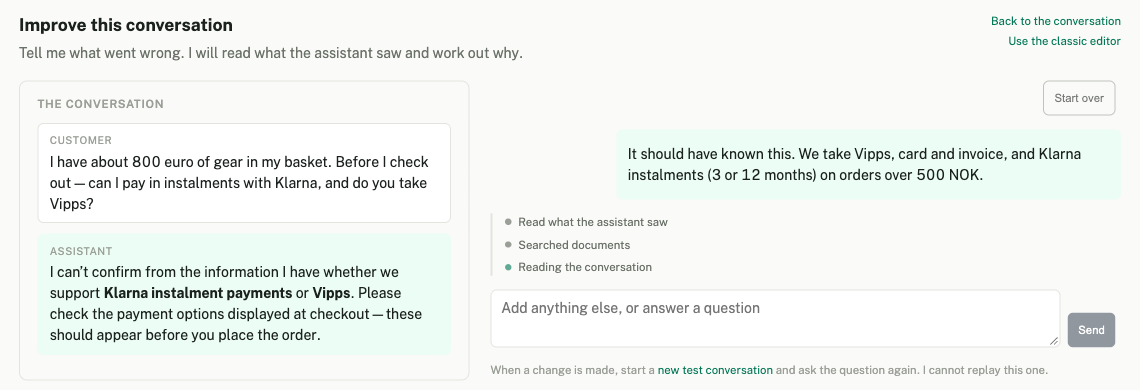
KonversAI shows what it reads while it works out the cause.
-
Read the plan card What I think went wrong. The card names one cause, shows how sure KonversAI is, and explains the cause in two or three sentences. Open What I read to decide that to see the evidence and The documents I read. Under What I propose to do, each step says what changes and how far the change reaches.
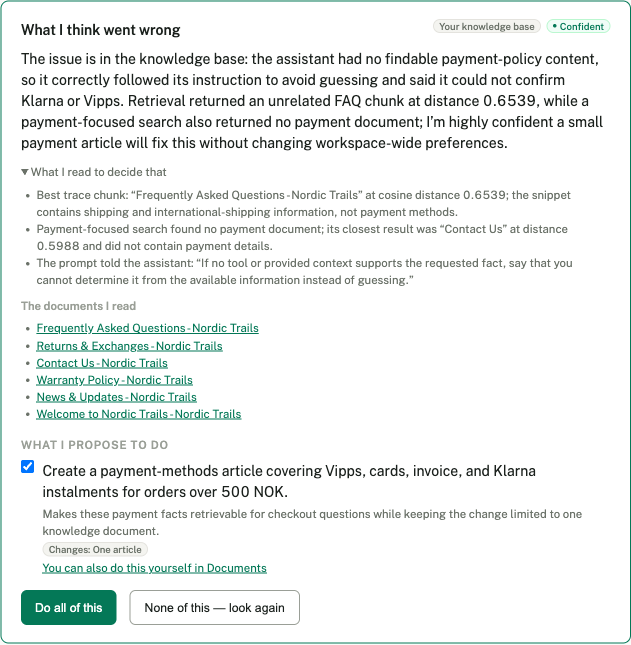
The plan. Tick the steps you want, then select Do all of this or Do the steps you ticked.
-
Answer the plan. Every step starts ticked. Untick a step you do not want. Select Do all of this to agree to every step. When you untick a step, the button names the number of steps you kept, for example Do the 1 I ticked. Select None of this — look again to reject the plan. KonversAI then looks for a different cause.
-
Read the confirmation card for each step. KonversAI prepares the change and shows it in a card named Change waiting for your confirmation. The card shows each field before the change and after the change. A field that is empty today shows nothing yet.
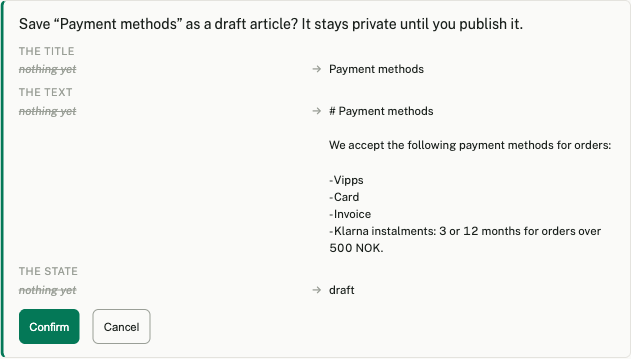
Nothing changes until you select Confirm. The card shows exactly what will change.
-
Select Confirm to make the change, or Cancel to drop it. Confirm within 10 minutes. After 10 minutes the card shows Expired — ask again. After Confirm, the card shows Done, and KonversAI tells you what to do next.
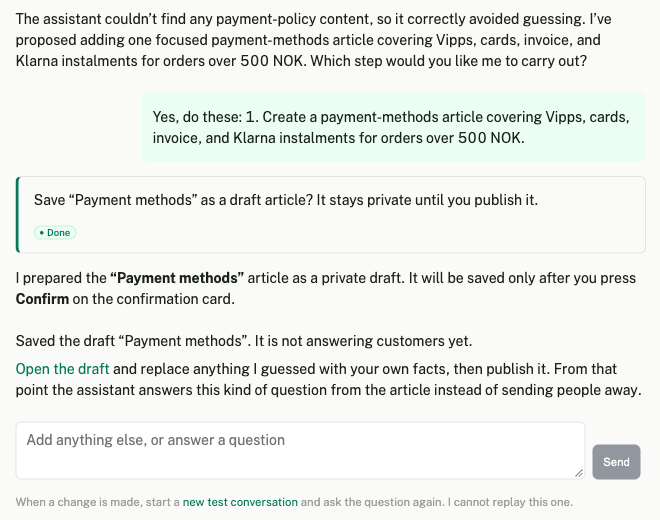
After Confirm, the card shows Done and KonversAI tells you what to do next.
-
Publish a new article when the change is a draft. A draft article stays private, and the assistant does not use it. Follow the link KonversAI gives you, read the draft, correct anything that is wrong, and publish it under Knowledge > Documents.
-
Test the fix. Select the link new test conversation at the bottom of the review, and ask the customer’s question again. KonversAI cannot replay the old conversation, so a new conversation is the only real test.
What can the review change for me?
Section titled “What can the review change for me?”The review on the Improve this conversation screen in the KonversAI console changes four things: your knowledge articles, the guidance text of a tool set, your AI settings, and the text of your chat widget. For an article, KonversAI can write a new one, edit one, publish one, archive one, or bring an archived one back.
The plan card names the cause with one of these labels: Your knowledge base, Your tool sets, Your AI settings, Your sales posture, The assistant type, The channel, This conversation or The model. For the last three, the review has no change to make. The plan card then says This one is not something I can change from here. Send the diagnosis above to your KonversAI contact.
The review never cancels or moves a booking, never closes the conversation, and never sends a message to the customer.
Does the review change anything before I agree?
Section titled “Does the review change anything before I agree?”No. The review on the Improve this conversation screen in the KonversAI console asks you twice. First you agree to the steps of the plan, with Do all of this or Do the 1 I ticked. Then KonversAI prepares each change in a card named Change waiting for your confirmation. The change happens only when you select Confirm in that card. Every change in a review asks for Confirm, also a change to your AI settings.
What does “Changes: Every answer you give” mean?
Section titled “What does “Changes: Every answer you give” mean?”Each step in the plan card on the Improve this conversation screen shows how far the change reaches. Changes: One article changes one knowledge article. Changes: One tool set changes the guidance of one tool set. Changes: One chat widget changes the text of one widget. Changes: Every answer you give changes your AI settings, such as the tone of voice or the conversation scope. That change affects every answer the assistant gives, to every customer, on every channel. KonversAI proposes it only when the evidence points at the setting itself. Think carefully before you agree to that step.
The plan is wrong. What do I do?
Section titled “The plan is wrong. What do I do?”Select None of this — look again on the plan card on the Improve this conversation screen in the KonversAI console. KonversAI then looks for a different cause and proposes a new plan. The card shows You turned this down. I am looking again.
To help KonversAI, type more detail in the box Add anything else, or answer a question and select Send. For example, give the correct price, or say which document holds the right answer. You can also make the change yourself. Each step has a link, such as You can also do this yourself in Documents, that opens the screen for that change in a new tab.
How do I start a review again from the beginning?
Section titled “How do I start a review again from the beginning?”Select Start over at the top of the review on the Improve this conversation screen in the KonversAI console. The screen asks: Discard this review and start again? Changes you already confirmed stay. Select Discard and start over to begin again, or Keep this review to go back.
Start over cancels every change that still waits for Confirm. It does not undo a change you confirmed. When you leave the screen and come back in the same browser, KonversAI opens your earlier review again, until you select Start over.
The confirmation card says “Expired — ask again”. What do I do?
Section titled “The confirmation card says “Expired — ask again”. What do I do?”A card named Change waiting for your confirmation on the Improve this conversation screen in the KonversAI console stays open for 10 minutes. After 10 minutes the card shows Expired — ask again, and Confirm does nothing. Type a short message in the box Add anything else, or answer a question, such as “Prepare that change again”, and select Send. KonversAI prepares a new card.
When a card shows Could not be done or the message That did not go through. Ask the assistant to prepare it again., the change failed and nothing changed. Ask KonversAI to prepare the change again in the same way. When the change fails again, check that your role has the permission for that area on Settings > Users & permissions.
Which language does the review use?
Section titled “Which language does the review use?”The review on the Improve this conversation screen in the KonversAI console answers in the language you write in. This is true also when the customer conversation is in another language. When your language is not clear from your message, KonversAI uses the language of your console. KonversAI quotes text from the conversation and from your documents word for word, in the original language.
Can I still rewrite the answer by hand?
Section titled “Can I still rewrite the answer by hand?”Yes. Select Use the classic editor at the top right of the Improve this conversation screen in the KonversAI console. In the classic editor you type the correct answer over the old one, and KonversAI turns your rewrite into a draft knowledge document. Use the classic editor when you already know the right answer and want to write it yourself. See Rewrite answers in the classic editor.
Last reviewed . Tell us when a step no longer matches the product.