

Connect SharePoint
Summary
Section titled “Summary”The SharePoint connection lets KonversAI import documents from SharePoint folders into your knowledge base. The assistant can then answer with the information in those documents. You connect on the Import from SharePoint screen in the KonversAI console. Select Knowledge in the left sidebar, then Imports, then New import. On the Start import screen, select SharePoint (preview).
KonversAI only reads your files. It never changes, moves or deletes them. KonversAI reads only the folders that you give it, and their subfolders. It cannot see other folders, other SharePoint sites, email or Teams. You can remove the access at any time.
There are two ways to connect:
- Use the KonversAI app. Recommended for most companies. An admin of your Microsoft 365 approves our app one time. You do not manage an app or a secret. This page explains this way.
- Use your own app. For companies that do not allow apps from other companies. Your IT makes an app in your own Microsoft 365. See Connect SharePoint with your own app.
Both ways give the same folder-only access. After you connect, see Import documents from SharePoint.
Who can do this
Section titled “Who can do this”In KonversAI, a team member with the Modify tenant settings permission connects SharePoint and adds folders on the Import from SharePoint screen. A Tenant Admin has this permission, always. A team member without this permission sees only the folders that KonversAI can read. If SharePoint is not connected, this team member sees “SharePoint is not connected. An admin of your KonversAI account must connect it first.” Select Copy the link for the admin and send the link to an admin.
In Microsoft 365, two people help. A Global Administrator (or a Privileged Role Administrator) approves the KonversAI app, one time. An owner of the SharePoint site (or a SharePoint administrator) gives access to each folder. One person can have both roles.
Before you start
Section titled “Before you start”Sign in to the KonversAI console and select your tenant. Select Knowledge in the left sidebar, then Imports, then New import. On the Start import screen, select SharePoint (preview). The Import from SharePoint screen shows Not connected.
Find the SharePoint folder with the documents for your assistant. Put only documents that you want to share in that folder: anyone who chats with your assistant can get answers from the text of these documents. Open the folder in SharePoint in your web browser and copy the address from the address bar. You can also select … next to the folder, then Copy link.
If you are not a Global Administrator, the Copy message for IT button makes a message with the link. Send the message to your IT.
Choose the KonversAI app in KonversAI
Section titled “Choose the KonversAI app in KonversAI”-
In KonversAI: On the Import from SharePoint screen, select Use the KonversAI app. Two steps show below it: Approve the KonversAI app and Give access to a folder. Step 2 stays grey until the app is approved.
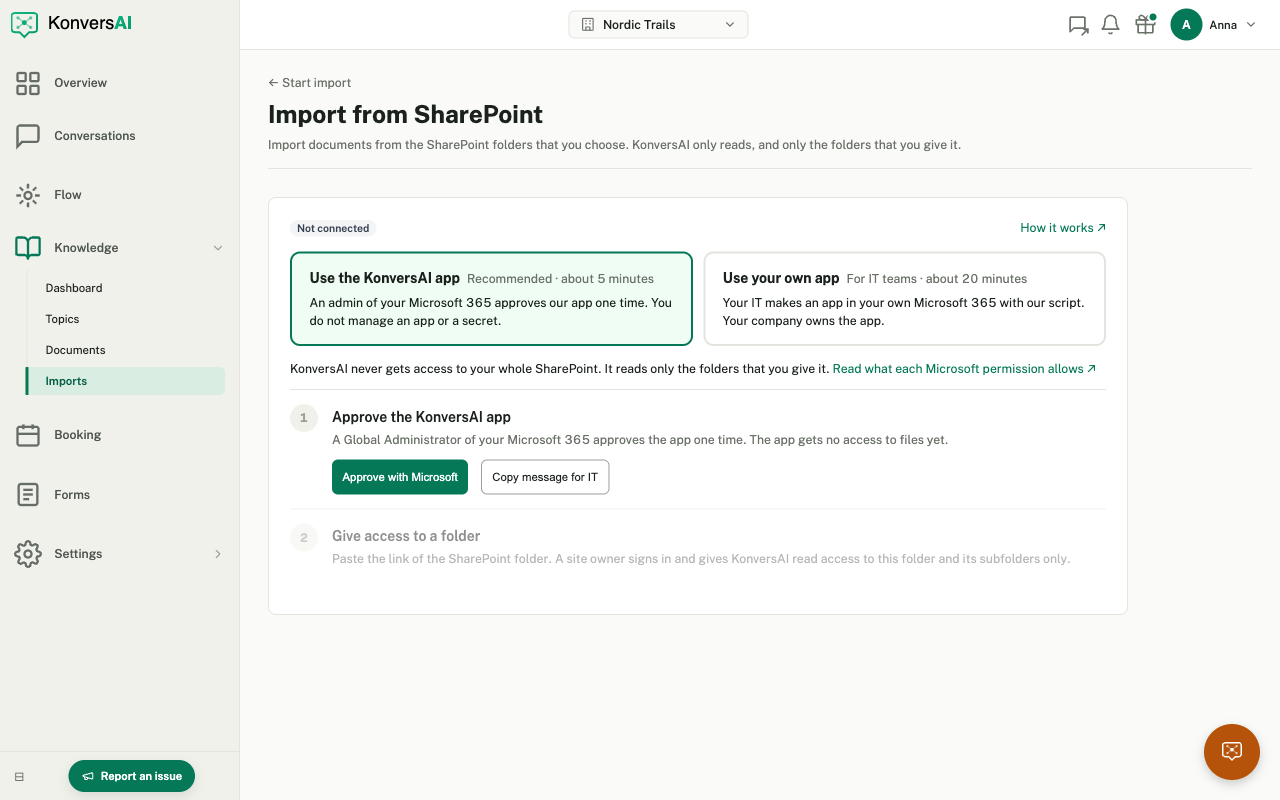
The Import from SharePoint screen before you connect. Use the KonversAI app is selected.
Approve the KonversAI app in Microsoft
Section titled “Approve the KonversAI app in Microsoft”-
In KonversAI: In step 1, Approve the KonversAI app, select Approve with Microsoft. A Microsoft page opens in a new tab. If you are not a Global Administrator, select Copy message for IT and send the message to your IT instead.
-
In Microsoft: Sign in as a Global Administrator. Microsoft shows the app KonversAI SharePoint and its permissions. Select Accept.
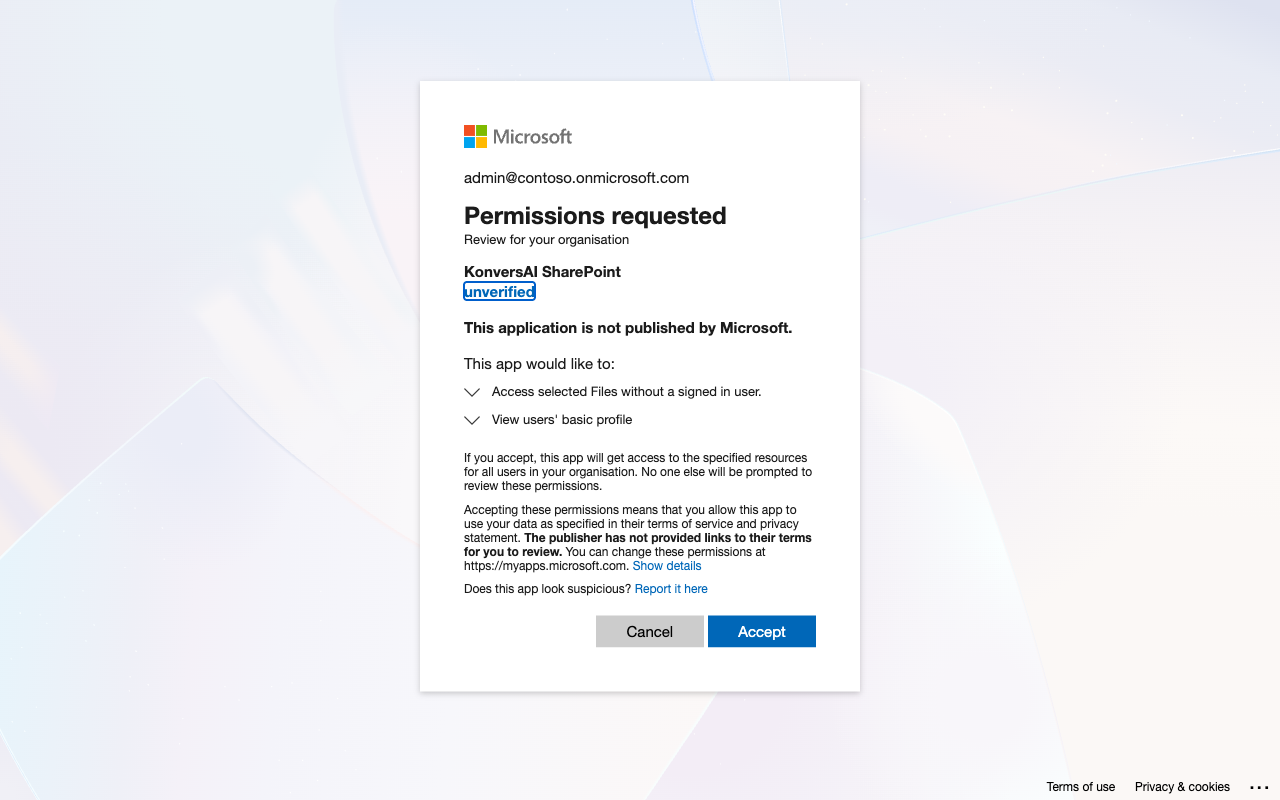
Microsoft shows the permissions of the KonversAI app before the admin accepts.
-
In Microsoft: Microsoft asks you to sign in one more time. KonversAI then shows which KonversAI account to connect, and who asked for the connection. Check the account name and select Connect.
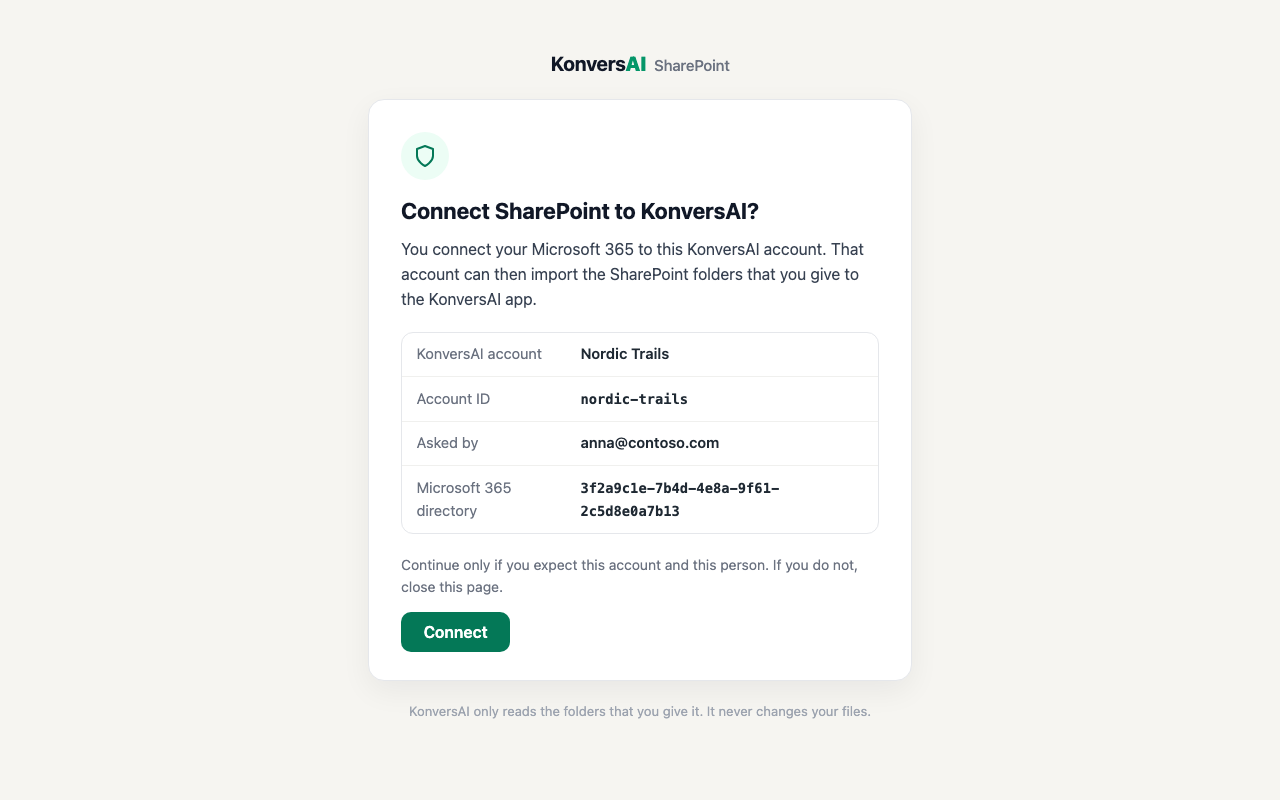
Check the KonversAI account before you select Connect.
-
In KonversAI: Go back to the Import from SharePoint screen. The screen shows Connected with the KonversAI app and the section Add a folder. The app can read no files yet.
Give access to a folder in Microsoft
Section titled “Give access to a folder in Microsoft”-
In KonversAI: Under Add a folder, paste the folder link in Folder link.
-
In KonversAI: Select Give access with Microsoft. A Microsoft page opens in a new tab. If the owner of the SharePoint site is someone else, select Copy message for the site owner and send the message to them instead.
-
In Microsoft: Sign in as an owner of the SharePoint site. The first time, Microsoft asks for the delegated permission
Files.ReadWrite.All, and shows “Have full access to all files you have access to”. Select Accept. This permission is broad, but KonversAI uses it for one action only: it adds one “read” permission for the KonversAI app on this folder. See The permission of the folder step. If your company does not want to give this permission to KonversAI, use PowerShell instead: see “Give access with PowerShell” on this page. -
In Microsoft: KonversAI shows the folder, the KonversAI account and who asked. Check all three and select Give access. The page then says The folder access is given.
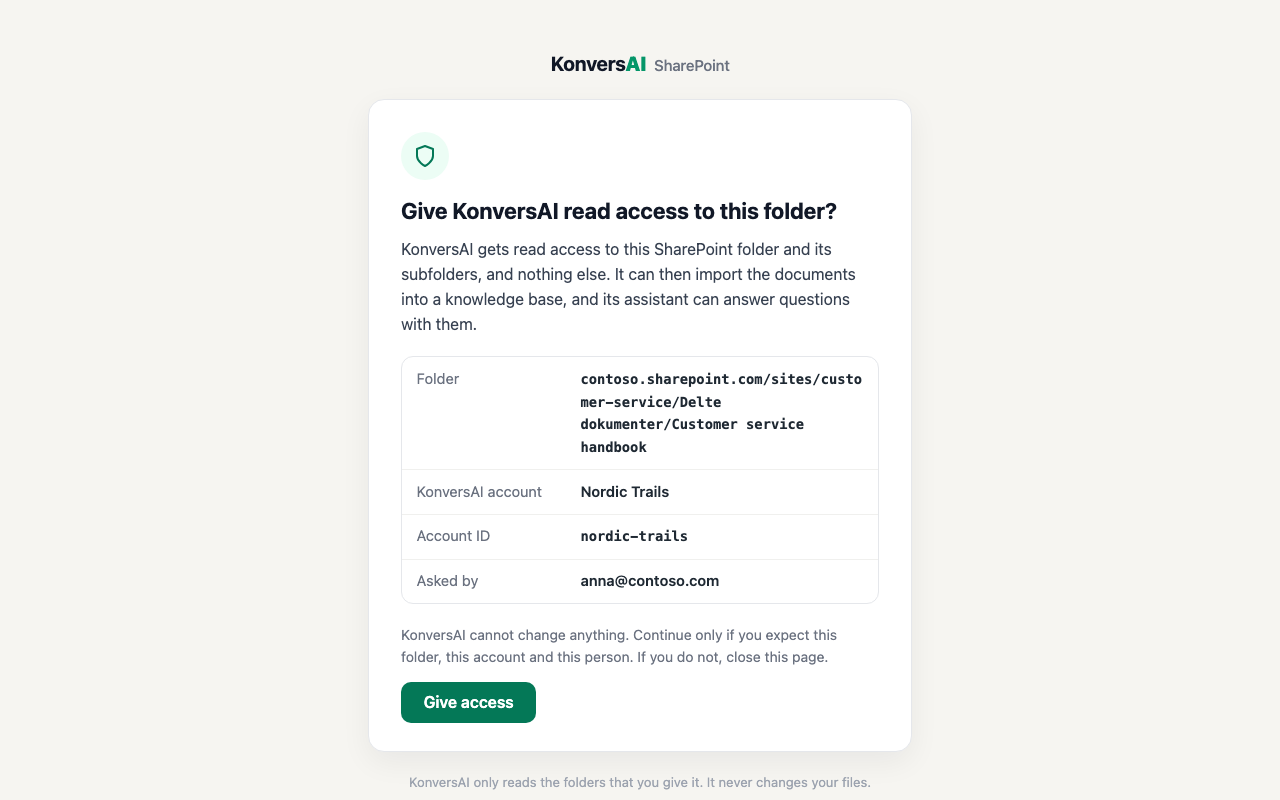
The site owner sees the folder and the account before they give access.
Import from the folder in KonversAI
Section titled “Import from the folder in KonversAI”-
In KonversAI: Go back to the Import from SharePoint screen. The folder shows under Folders that KonversAI can read. Select Choose files next to the folder to choose the files. See Import documents from SharePoint.
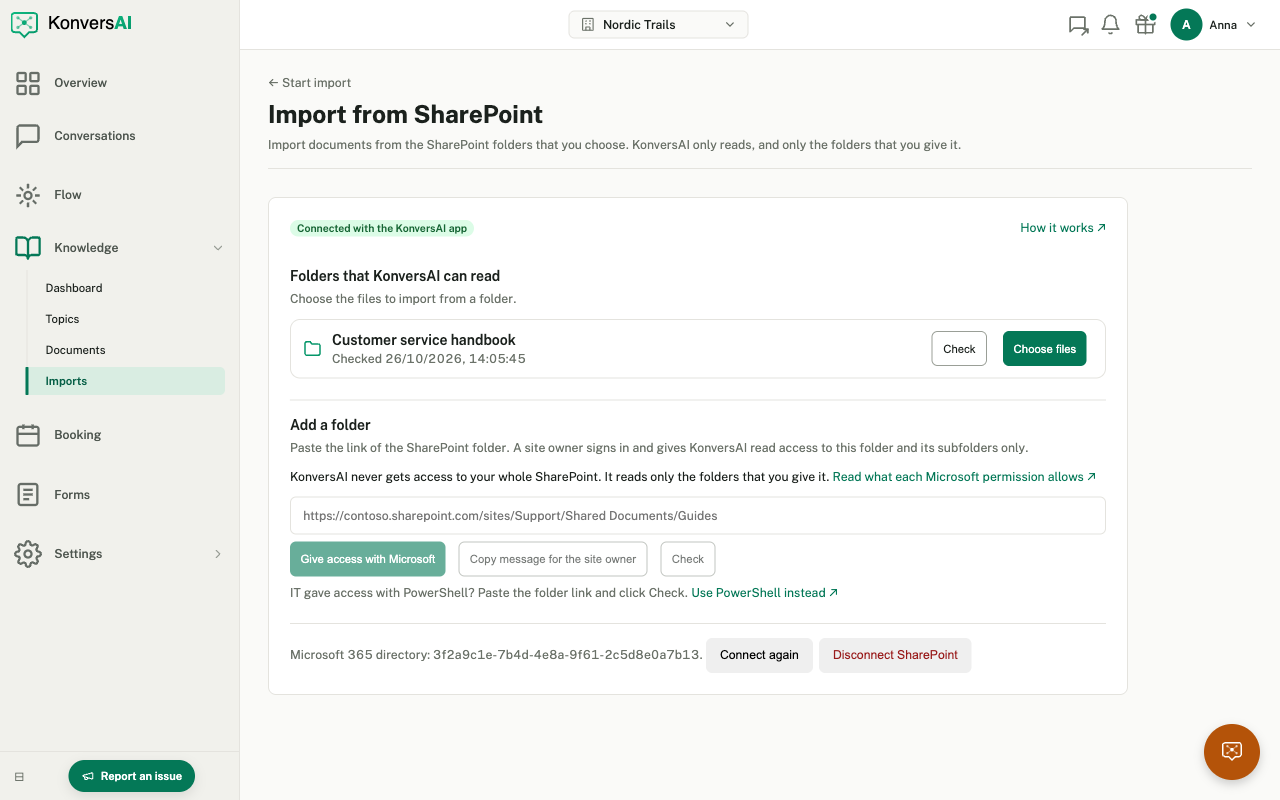
Connected, with one folder that KonversAI can read.
To give access to more folders, do steps 6 to 9 again for each folder.
Give access with PowerShell
Section titled “Give access with PowerShell”Some IT teams prefer a script that they can read before they run it. The script Grant-KonversAISharePointAccess.ps1 does the same as Give access with Microsoft: it adds read access for the KonversAI app to one folder, and nothing else. The script sends nothing to KonversAI.
-
Download Grant-KonversAISharePointAccess.ps1.
-
Install PowerShell 7 and the module Microsoft.Graph.Authentication:
Install-Module Microsoft.Graph.Authentication. -
Run the script with the folder link and the client ID of the KonversAI app. A Microsoft sign-in opens in your browser. Sign in as an owner of the SharePoint site or a SharePoint administrator.
Terminal window ./Grant-KonversAISharePointAccess.ps1 -FolderUrl "<folder link>" -AppId 5853aea5-39d6-4dff-93e0-1c5f20545f9a -
The first time, Microsoft asks you to approve permissions for Microsoft Graph Command Line Tools. Approve them for yourself only. Do not select Consent on behalf of your organization.
-
In KonversAI: On the Import from SharePoint screen, under Add a folder, paste the folder link in Folder link and select Check. The folder then shows under Folders that KonversAI can read.
To see the access later, add -List to the command. To remove the access, add
-Revoke.
What KonversAI can read
Section titled “What KonversAI can read”The KonversAI SharePoint app has three Microsoft permissions:
Files.SelectedOperations.Selected(application permission, approved by the Global Administrator). This is the permission that KonversAI uses to read. Alone, it gives access to no files. The app can read only the folders that a site owner gives it, with the role “read”.- Read the basic profile of the admin who signs in (
openidandprofile). KonversAI uses it to check who approves the app. Files.ReadWrite.All(delegated permission, approved by the site owner for themselves). Only Give access with Microsoft uses it, one time for each folder. See the next section.
KonversAI imports the text of each file that you select. After the import, KonversAI reads the folder again every hour, to find new, changed and deleted files. It does not keep the files themselves, and it never changes your files.
The permission of the folder step
Section titled “The permission of the folder step”Microsoft has no read-only permission that can give an app access to a folder.
To add access, the app must change the sharing settings of the folder. For
this change, KonversAI asks the site owner for Files.ReadWrite.All. Microsoft
shows it as “Have full access to all files you have access to”.
| Who approves it | The site owner, for themselves only. It is not an admin consent for your organization. |
| What KonversAI does with it | One call: POST /drives/{drive}/items/{folder}/permissions with the role “read” for the KonversAI app. Nothing else. |
| How long KonversAI can use it | KonversAI gets one access token. Microsoft makes it expire after about one hour. KonversAI does not ask for a refresh token (offline_access), and it does not store the access token. KonversAI drops it after the call. |
| What stays in Microsoft 365 | Microsoft keeps a record that the site owner approved the permission. KonversAI can use it again only when the site owner signs in through a KonversAI link again. |
| How to remove it | The site owner opens My Apps, selects … on KonversAI SharePoint, then Manage your application, then Revoke permissions. The folder access of the app stays. |
To keep this permission away from KonversAI completely, give access with
PowerShell. The script also needs a broad permission (Sites.FullControl.All),
but the site owner gives it to Microsoft’s own app, Microsoft Graph Command
Line Tools, and not to KonversAI.
Disconnect SharePoint
Section titled “Disconnect SharePoint”On the Import from SharePoint screen, select Disconnect SharePoint at the
bottom of the screen, then confirm. KonversAI stops reading SharePoint, so the
hourly sync no longer updates the documents. Documents that you imported stay in
your knowledge base until you delete their import. To remove
the access in Microsoft too, remove the folder access with the script and
-Revoke, or delete KonversAI SharePoint in Microsoft Entra under
Enterprise applications.
Can KonversAI see all of our SharePoint?
Section titled “Can KonversAI see all of our SharePoint?”No. The KonversAI SharePoint app can read only the folders that a site owner gives it, and their subfolders. It cannot see other folders, other SharePoint sites, email, Teams or users. Approving the app gives access to no files.
Can KonversAI change or delete our SharePoint files?
Section titled “Can KonversAI change or delete our SharePoint files?”No. KonversAI only reads SharePoint folders. It never changes, moves or deletes your files.
Who must approve the KonversAI app in Microsoft 365?
Section titled “Who must approve the KonversAI app in Microsoft 365?”A Global Administrator or a Privileged Role Administrator of your Microsoft 365 approves the KonversAI SharePoint app, one time. If you do not have that role, select Copy message for IT on the Import from SharePoint screen and send the message to your IT.
Who can give KonversAI access to a SharePoint folder?
Section titled “Who can give KonversAI access to a SharePoint folder?”An owner of the SharePoint site, or a SharePoint administrator, gives access to a folder with Give access with Microsoft or with the PowerShell script. If the site owner is someone else, select Copy message for the site owner on the Import from SharePoint screen and send the message to them.
Why does Microsoft show “unverified” next to the KonversAI app?
Section titled “Why does Microsoft show “unverified” next to the KonversAI app?”Microsoft shows “unverified” until Microsoft has verified the publisher of an app. The app KonversAI SharePoint is the app of KonversAI. Check the app name and the permissions on the Microsoft page before you select Accept.
Why does Microsoft ask for “full access to all files you have access to”?
Section titled “Why does Microsoft ask for “full access to all files you have access to”?”Microsoft shows this text for the delegated permission Files.ReadWrite.All
when a site owner selects Give access with Microsoft the first time.
Microsoft has no read-only permission that can give an app access to a folder.
KonversAI uses the permission one time, at that moment, to add one “read”
permission for the KonversAI app on the folder. The access token expires after
about one hour, and KonversAI does not store it. To remove the approval
afterwards, use Revoke permissions in My Apps.
If your company does not want to give this permission to KonversAI, give access
with the PowerShell script Grant-KonversAISharePointAccess.ps1 instead. See The
permission of the folder step.
What happens to the documents when we disconnect SharePoint?
Section titled “What happens to the documents when we disconnect SharePoint?”When you disconnect SharePoint on the Import from SharePoint screen, the documents that you imported stay in your knowledge base. The hourly sync no longer updates them, and the import page says “The last sync failed”. Delete the import on the Imports screen to remove the documents.
How do we remove the access in Microsoft?
Section titled “How do we remove the access in Microsoft?”To remove the access to one folder, run Grant-KonversAISharePointAccess.ps1 with
-Revoke. To remove all access at once, delete KonversAI SharePoint in
Microsoft Entra under Enterprise applications.
Our company does not allow apps from other companies. What do we do?
Section titled “Our company does not allow apps from other companies. What do we do?”Use your own app. Your IT makes an app in your own Microsoft 365 with our setup script, and enters its client ID and secret in KonversAI. See Connect SharePoint with your own app.
Last reviewed . Tell us when a step no longer matches the product.